A bottleneck calculator that shows its working, not just a number

Identify the weakest link between your CPU and GPU, and get a balance percentage to help you understand potential causes of performance bottlenecks at your chosen resolution before you spend your money. This free online tool allows you to compare performance across various resolutions.

Select your components

Select Your CPU
Fill in name, cores and boost clock.
Select Your GPU
Fill in name, shaders, boost clock and VRAM.
Screen resolution
Main use
⚙ Advanced options, more accurate results
Game genre
Graphics quality
Select your components

Choose your CPU, GPU, RAM, resolution and main use on the left, then press Calculate bottleneck to see your result.

Your result

0%
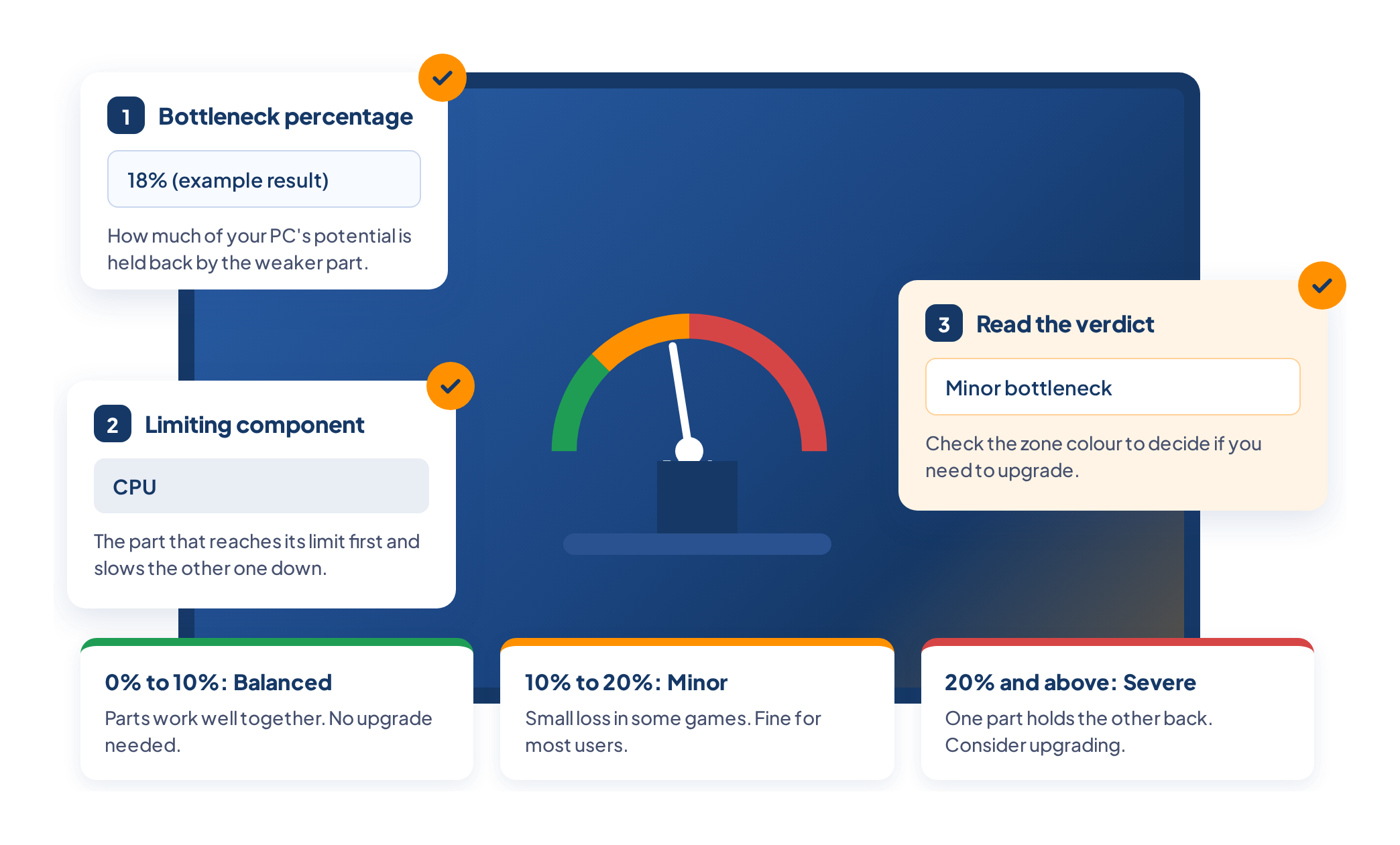
0–10%
Balanced
10–19% Minor
20%+ Severe

Component load

CPU usage
GPU usage
RAM usage

What it meansInsight

Quick fixFree

Best upgradeUpgrade

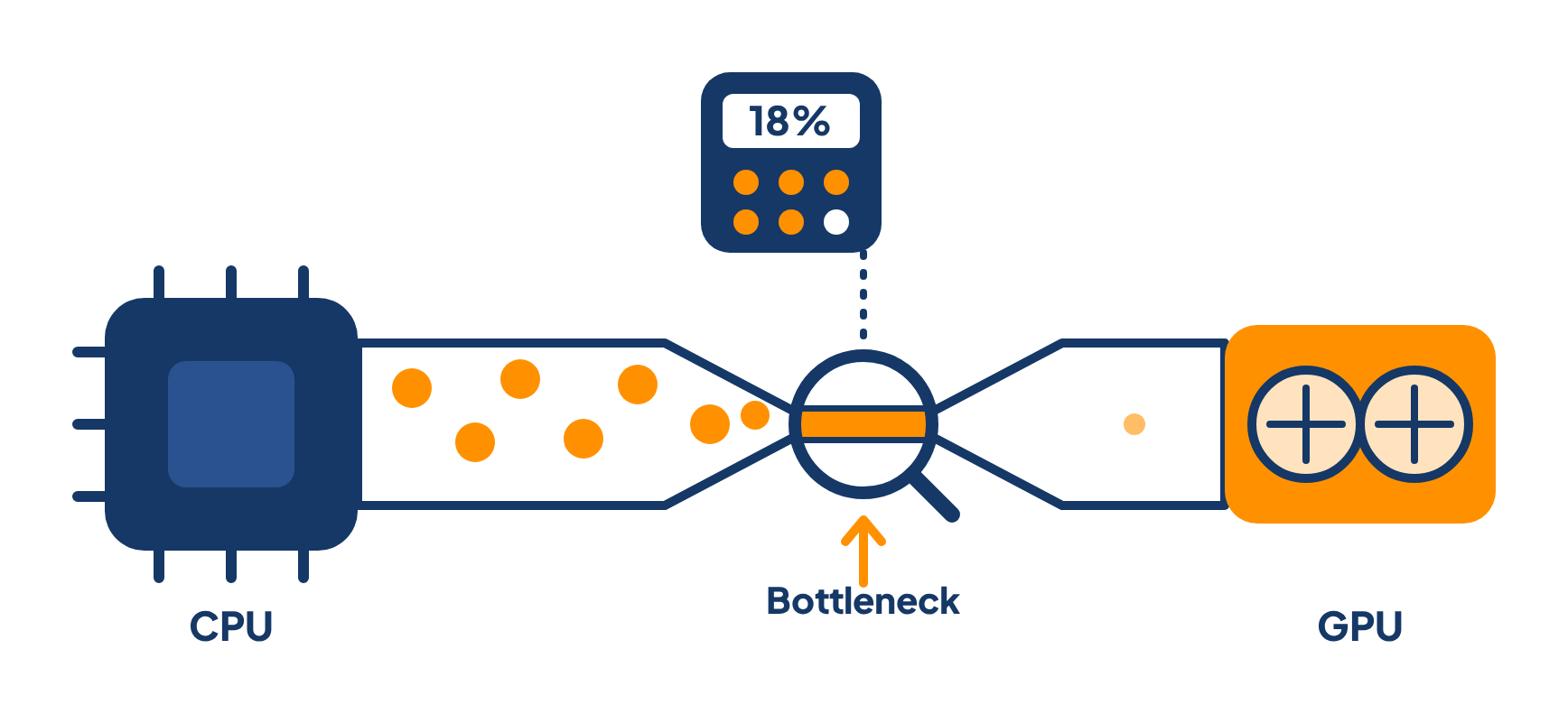
Estimate, not a measurement. Each part has a benchmark-derived score; the CPU and GPU frame-rate limits are modelled separately (GPU: resolution and VRAM; CPU: RAM, platform and settings) and the bottleneck is how far the weaker side holds back the stronger one. Real results vary by game, drivers and cooling.
Component radar

Estimated average FPS

1080p
1440p
4K

What to upgrade

What is a bottleneck calculator
how does bottleneck calculator work​

What is a bottleneck calculator, and how does it work?

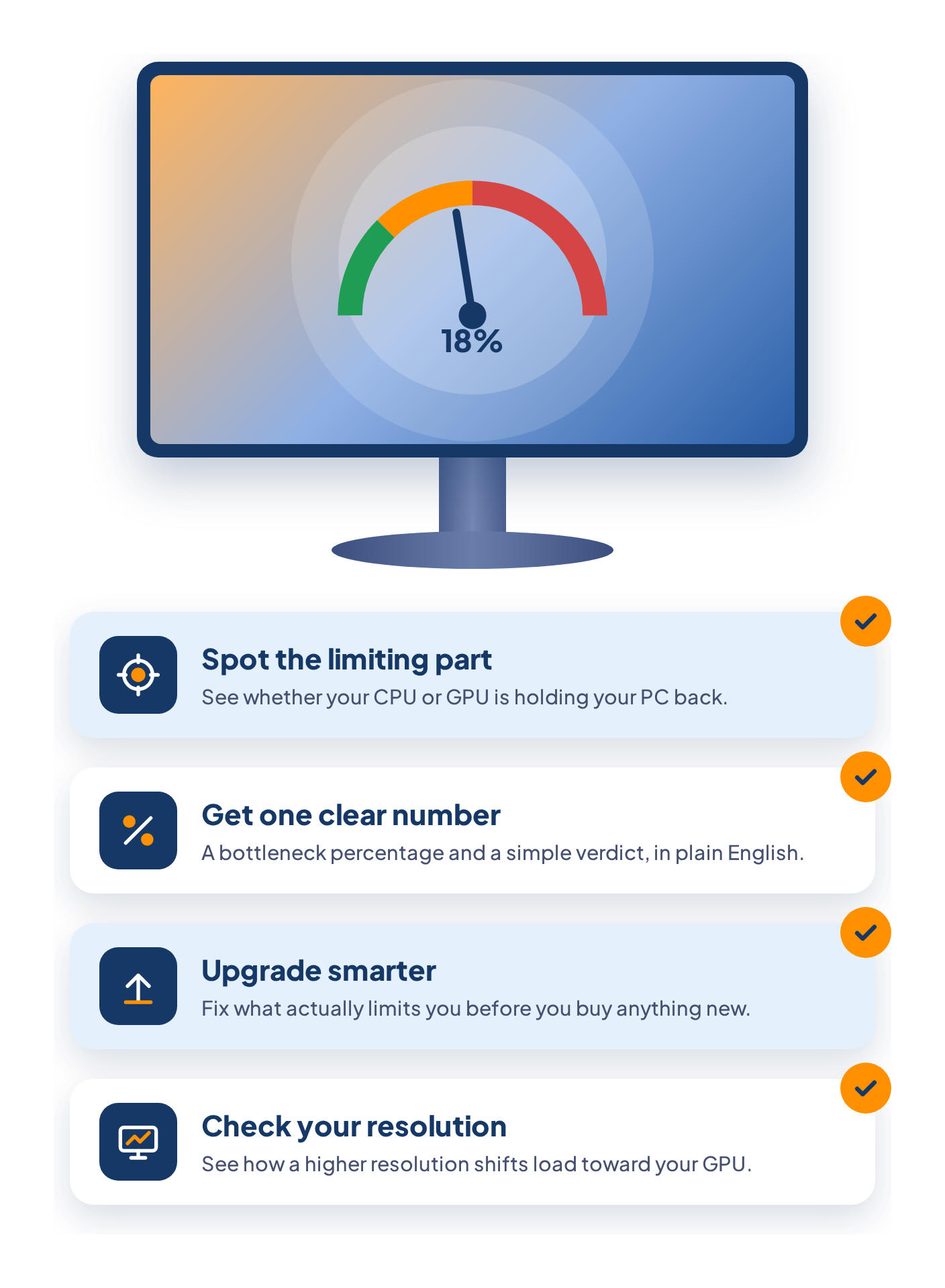
Bottleneck calculator is a free tool that shows which part of your PC is holding back its performance. You just have to pick your processor, graphics card, RAM and resolution, choose a workload, then calculate. It compares your CPU and GPU limits and gives a percentage, a balance estimate in under two seconds, with no login. A high number points to a mismatched CPU or GPU. It gives estimates, never a guaranteed FPS figure. Check it before you upgrade.

Mohsin Ali, founder of Your Bottleneck Calculator
Founder at Your Bottleneck Calculator

How to Use Your Bottleneck Calculator

01.

Pick Your Parts and Resolution

Start by choosing your CPU and GPU, then set 1440p or 4K so the workload matches your real gaming habits, not a lab number.

02.

Read the Percentage Before Panicking

I rarely fret over a 0–10% gap, which is normal, but 20–30% is noticeable and 30%+ means real losses worth fixing.

03.

Act on the Report, Then Re-run

Save the detailed analysis report, follow the smart suggestions, then run it again before and after upgrades. Monitor performance data and improve strategies for better results

How to interpret results

I read the TPC number as a severity rating, never a verdict. Anything below 10% is mild and acceptable, so skip the worry and keep playing. Once a score runs past 20%, ask which part waits for the other. Low GPU use during heavy games usually points to the CPU, while a pinned card says the opposite. The same percentage at 1080p versus 4K tells different stories, and graphics settings can swing it, so I note variation before blaming cooling. Before spending anything, I verify the result with real-world testing, then close background processes, update drivers, and recheck settings. Results shift between similar systems, so treat one run as a clue.

How to interpret bottleneck calculator results

Why Use Your Bottleneck Calculator

Stop Guessing Before You Spend

A PC running slow rarely explains itself. I’ve seen people buy a stronger GPU and get little FPS gain. A free bottleneck calculator gives upgrade advice first, so you upgrade the limiting part instead of guessing.

Numbers You Can Actually Read

In under two seconds, a percentage appears with a status label and CPU vs GPU chart. There’s no login and no guaranteed FPS figure, only a balance estimate from calibrated benchmarks.

Why use Your Bottleneck Calculator

Want to know how it works

Built Around Your Workload

Pick a workload, set resolution anywhere from 720p–8K, and the workload selector reshapes the answer. Gaming, video editing and programming stress the CPU and GPU differently, which a single Overall score hides.

Free Wins Before Hardware

Often immediate fixes such as update drivers, XMP/EXPO and a high-performance power plan help before upgrade paths matter. The Recommendations tab carries a cause-and-solution table, so close background apps first.

What is a PC bottleneck

A PC bottleneck is simply one part reaching its limit while the rest wait around. I’ve watched gaming performance stall on a rig with a monster card because of a mismatch in tiers, not a defect. Treat any calculator output as estimates, then open System Info to confirm what you actually own. The goal is a sensible balance between parts, so your next upgrade lands where it counts. Most owners blame the wrong part first, which is why I check usage before buying anything.

Causes of PC bottleneck

Most causes I run into come down to low cores paired with a fast card, outdated drivers, limited VRAM at high resolutions, or slow RAM running single-channel RAM with disabled XMP/DOCP. Add thermal throttling, background processes, or an old HDD choking asset streaming, and a decent build still drops frames for reasons unrelated to horsepower.

Signs of PC bottleneck

The tell is usually in the numbers: GPU near 100% while the CPU idles means you are fine, but low GPU load with 90–100% CPU points the other way. Watch for stutter, frame drops, texture pop-in, slow loads, and freezes that persist after you reduce CPU-heavy settings. If low frame rates appear on ultra settings and 4K Ultra barely changes the score, that gap is your clue.

How to Fix and Avoid PC Bottlenecks

Check background apps and drivers before buying anything; a stutter can waste a weekend. A CPU-bound rig with weak IPC often leaves an underused GPU, so fix the part that’s actually limiting instead of upgrading immediately. Moving to high resolution shifts load toward the graphics card, and XMP/EXPO with 16GB for gaming or 32GB for multitasking stops Windows pages to the drive. Keep low free space off your NVMe, watch overheating, and tune fan curves before blaming the hardware. In my experience a PSU size mismatch causes crashes, so rerun benchmarks after each tweak. On laptops, laptop power limits and cooling quietly cap output, and old paste makes it worse. Frame generation can mask a weak CPU but never cures it, so judge real results, not displayed FPS.

How to Fix and Avoid PC Bottlenecks

CPU Bottleneck

GPU Bottleneck

RAM Bottleneck

VRAM Bottleneck

Storage Bottleneck

Thermal Bottleneck

PCIe Bottleneck

Resolution Bottleneck

Types Of Bottleneck

A CPU bottleneck shows up as FPS drops in crowded scenes while the GPU sits half idle. Poor optimization, heavy CPU base load and background apps make it worse. A large CPU/GPU gap guarantees uneven gameplay, especially at high-refresh targets.

A GPU bottleneck is the healthier kind. When the GPU limit arrives at 4K with ray tracing on and upscaling off, one part near full use simply means the card is doing its job. It only matters when detail drops and average FPS still disappoints.

This one hides behind low RAM or single-channel RAM. Memory-starved systems stutter during multitasking and streaming long before the CPU maxes out. Dual-channel memory bandwidth and sane latency fix more than most people expect.

VRAM is the limit nobody checks until textures pop in late. Low VRAM hitches even a strong card, so the guidance is 8GB for 1080p, 12GB for 1440p and 16GB+ for 4K. You cannot add VRAM to an existing card, only replace it.

Slow storage rarely cuts frame rates, yet game engines that stream assets will hitch on it. An SSD helps loading, not a processor ceiling, and NVMe heat can quietly throttle it, so keep free disk space available.

A thermal bottleneck is the sneaky one. Weak cooling, dust and poor airflow create high temperature and throttling, so lower clocks follow. Clogged laptop vents sit behind many unexplained performance drops, so check cooling first.

A PCIe generation mismatch matters less than forums claim. A card in a narrow slot loses a little bandwidth, but wrong placement in the board is the usual culprit, and badly seated connectors cause their own trouble.

A 60Hz monitor hides a weak CPU, while a 1080p 240Hz panel exposes it. At 1080p the processor works harder than the card, whereas 1440p shifts load to the GPU. That is why lower resolution makes a CPU limit obvious.

The calculator is free to use, no signup required

Bottleneck Types Covered

0 +

Use Cases Include

0 +

Resolutions Included

0 +

Updated November

0

Common CPU and GPU Bottleneck Scenarios

scenario max-max

Max/Max

Few builds sit at Max/Max for long, and any screenshot claiming otherwise should be treated with doubt. In different types of games, the GPU renders a frame and then waits as the bottleneck shifts between components. A GPU capable of 220 FPS feels wasted when the CPU prepares 140 at best, so even an i7-13700K with an RTX 4080 may only approach true balance in short, fleeting bursts in some games.

scenario Low-Low

Low/Low

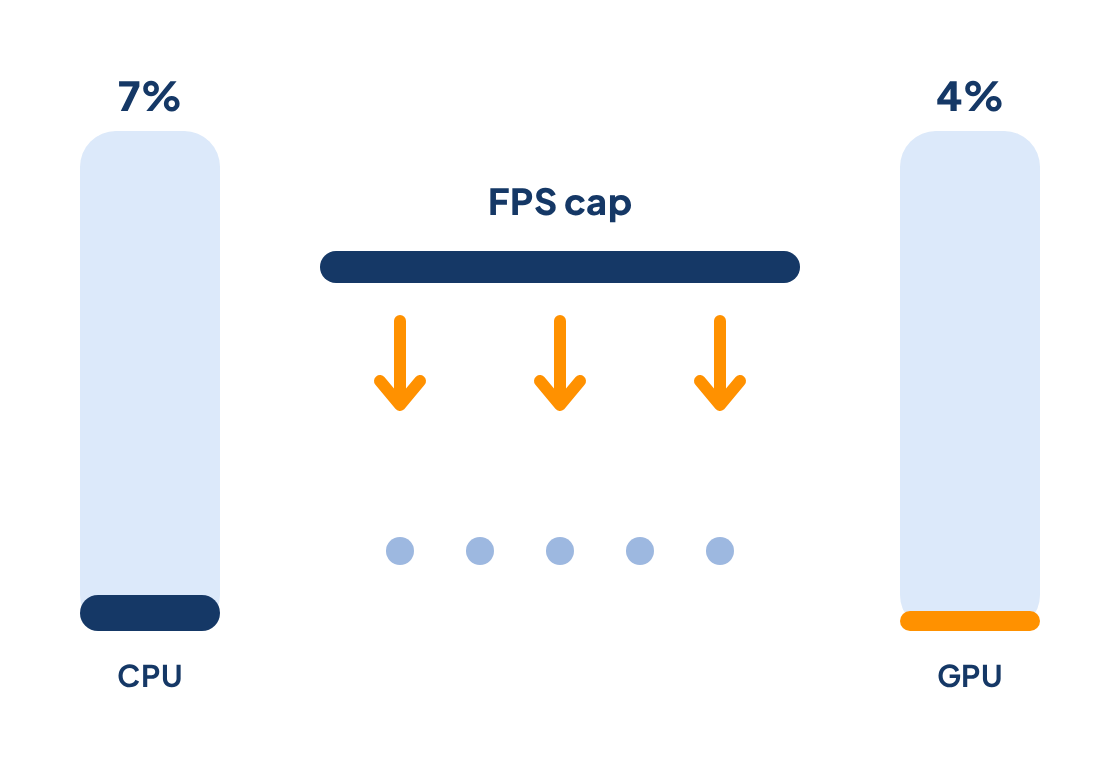
Low/Low usage looks harmless, yet it can mislead for months on an office tower. Neither chip was busy (CPU near 7%, GPU near 4%) because the game itself capped frames while other parts idled. Check power mode and startup programs, since wrong settings mimic unbalanced parts, and this ranks among the common utilization scenarios newcomers misread.

scenario Max CPU-High GPU

Max CPU + High GPU

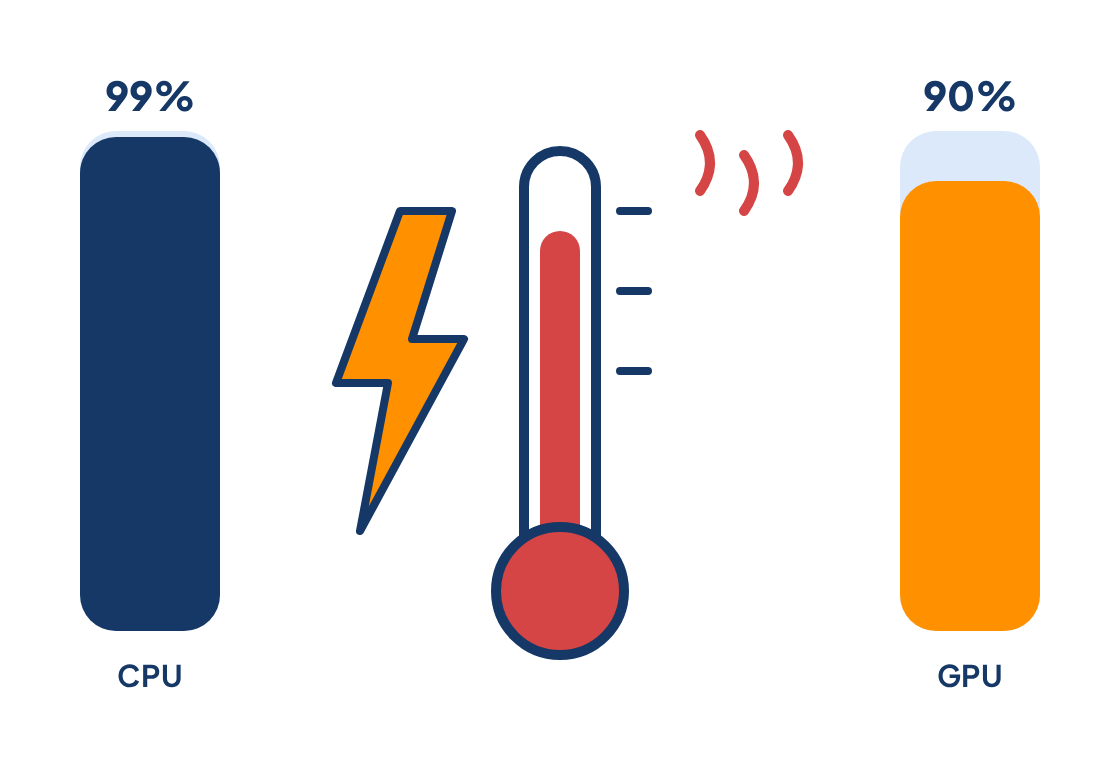
Max CPU + High GPU is where heat matters more than speed. With 6 cores/12 threads pinned at 99% and the graphics card near 90%, coolers matter more than clock speed, and unstable power shows up as restarts under load. A bigger power supply with honest wattage often helps more than any upgrade. Check case airflow and fan curves too.

scenario High CPU-Max GPU

High CPU + Max GPU

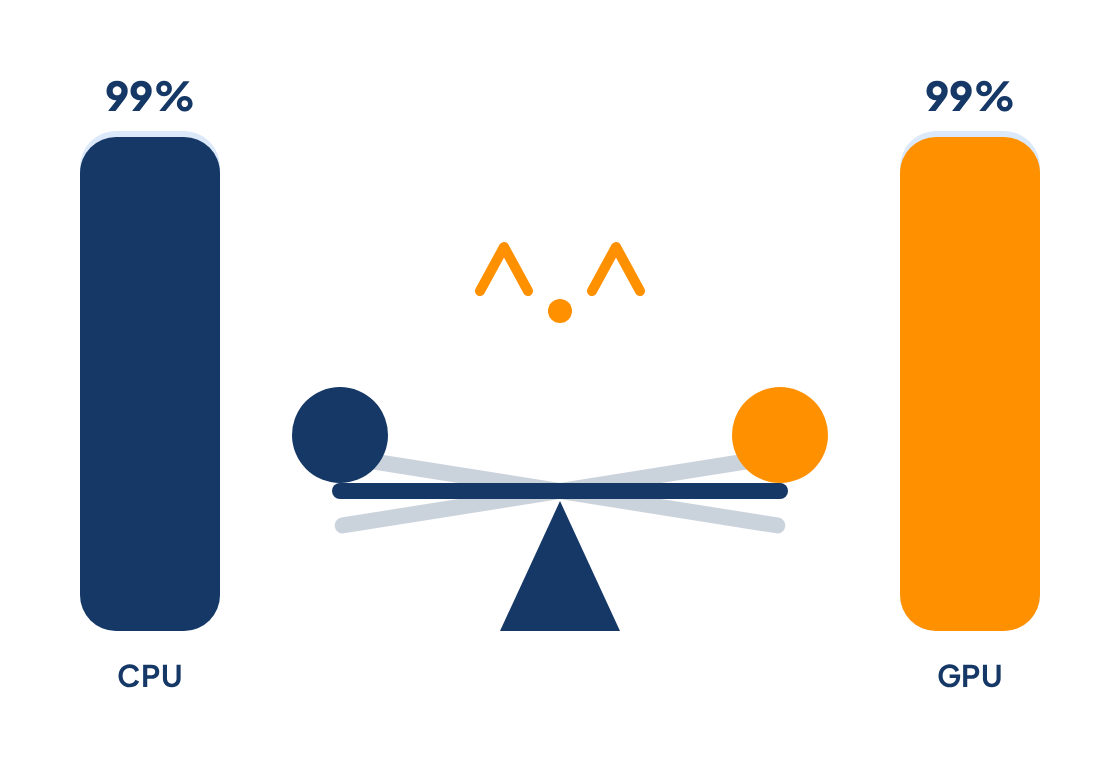
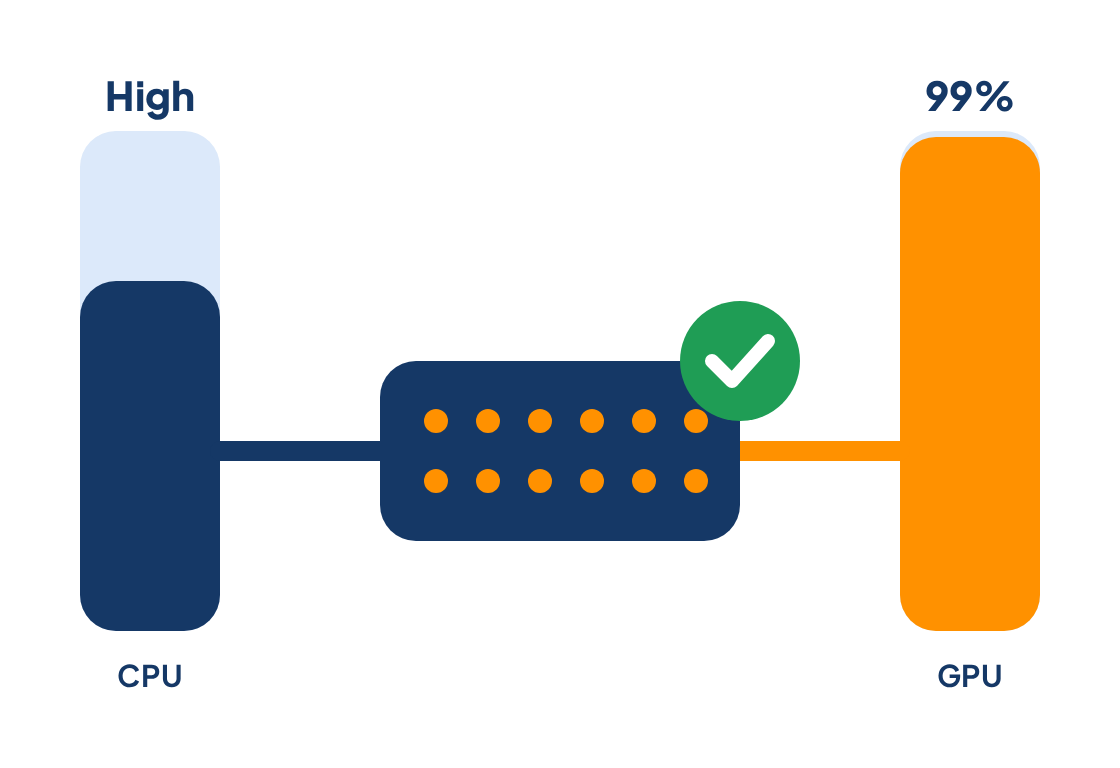
High CPU + Max GPU is the healthy one, honestly, since the graphics card does the heavy lifting at 99% load. Still, GPU power spikes can trip a weak unit, and I always inspect the 12V-2×6 connector for hot spots or discolored plastic. Seat it fully, mind the ATX 3.1 rating, and the usable 12V output stays steady. Replace any bent or worn cable.

scenario Max CPU-Low GPU

Max CPU + Low GPU

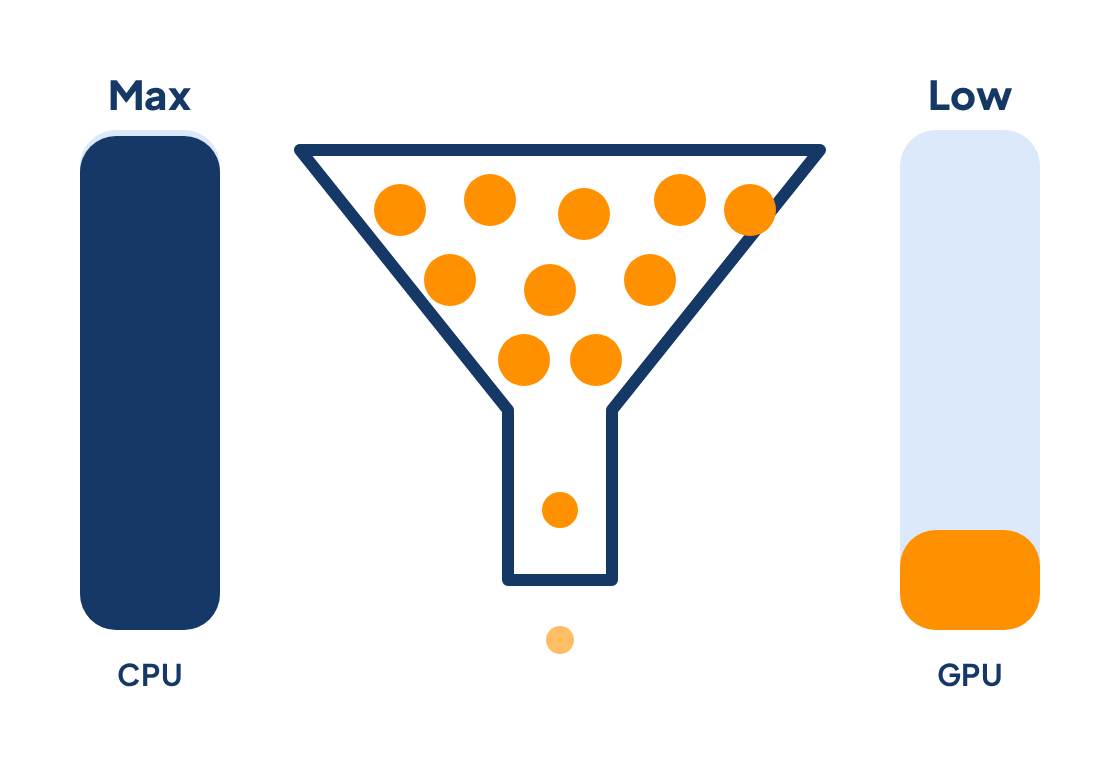
This is the classic CPU choke. In esports titles at low resolution on a Ryzen 5 3600 with an RTX 4070, one or two cores carried everything while the graphics card’s real rendering power sat unused. Trimming lower NPC counts and CPU-heavy settings, or a CPU swap to a 5700X3D, beats copying popular pairings off forums.

scenario Low CPU-Max GPU

Low CPU + Max GPU

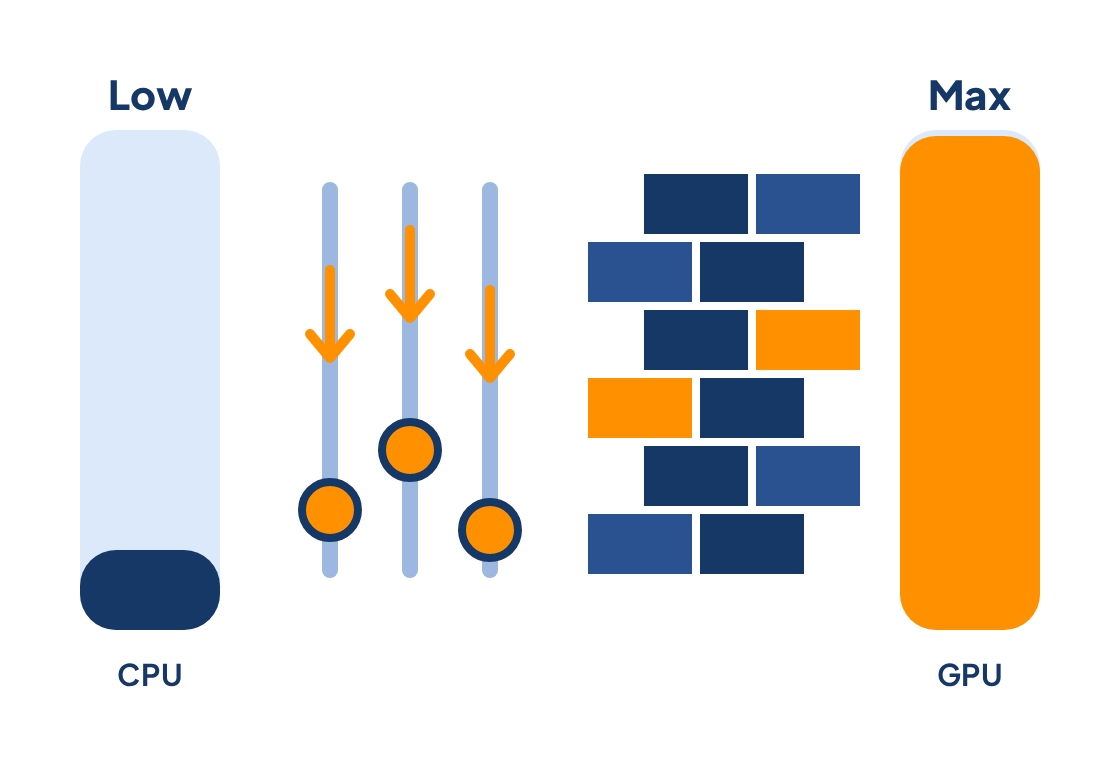
Low CPU + Max GPU is a GPU wall, and the fix usually lives in the menu. With a GTX 980 beside an i3-13100, the GPU takes longer per frame, so drop to lower GPU-heavy settings such as shadows and resolution scale before touching hardware. It’s a common trap in trending builds too, and the six CPU/GPU usage patterns rarely stay put between titles.

In how many cases can we use Your Bottleneck Calculator

Gaming

In Cyberpunk 2077 or Flight Simulator, a CPU can’t prepare frames quickly enough and a strong GPU just sits idle, a pattern seen on prebuilt PCs more than once. The Total score tells gamers whether to trim draw distance, try FSR, DLSS or XeSS, or choose lower graphics settings before buying anything. Open-world races like Forza Horizon 5 expose it fastest at 1080p.

Video Editing

Editing is a different animal, because timelines lean on multi-core strength and RAM, not only a fast GPU. When a project stutters in preview, I check cores, threads and storage first, since a small cache or a sluggish drive stalls exports long before rendering hardware does. Picking Productivity as the workload choice keeps the recommendations honest for content creation and creators.

Streaming

Streaming splits your CPU attention between the game and the encoder, so max CPU with a modest card is a pattern I see often. Background software and background disk use add lag that no FPS counter explains. Choose the right use case first, then read the breakdown for responsiveness gaps, because viewers notice dropped frames before you do. A 60Hz monitor hides it all.

3D Rendering

I treat Cinebench R23 numbers as a sanity check. GPU compute carries most final frames, yet clock speed, IPC and single-core speed still shape viewport work. Low VRAM crashes heavy scenes, and RAM limits big textures, so the upgrade paths here look nothing like the ones for a gaming rig. Creators doing 3D rendering should watch thermal throttling and cooling as well.

Office/Daily

Everyday users rarely need a strong card, and integrated graphics on laptops and desktops are usually fine. What hurts is slow boots from an HDD, or too little RAM with twenty browser tabs open, which feels like poor responsiveness. A SATA SSD is often the smart upgrade guidance here, and the tool’s ease of use makes it suitable for all users. Fine for daily use too.

Programming/Coding

Compiling big projects, running Docker and keeping an IDE open lean on cores, threads and RAM, so 32GB for multitasking is a fair target. For ML work, GPU compute and VRAM matter more, and I notice IT students buying gaming cards they never use. Selectable workloads let you pick Programming or ML and see which part truly limits you. Switching them can swing the result.

Is Your Bottleneck Calculator Accurate

The honest answer is that it is accurate enough to guide you, not to judge you. Its benchmarked database leans on multi-source scores from PassMark, TechPowerUp and Tom’s Hardware, all normalized so the top graphics card and the top processor each anchor their own scale at 100. Still, no estimate replaces a check of inputs: open Task Manager, watch live CPU/GPU usage while a game runs, and compare. If the two disagree, trust your machine, then revisit optimal settings and your 1% low FPS before blaming any part. Expect results change after database updates, since latest games and fresh patches shift the picture, and one fault in an input can swing the result by several points.

What People Get Wrong About Bottlenecks

“A bottleneck damages my hardware.” No. It limits performance only. Nothing gets damaged.

“Any percentage above a set number means my PC is bad.” Not quite. Context matters: workload, resolution and settings.

“The calculator tells me my exact FPS.” It can't. It estimates balance. Measure to confirm.

Questions People ask

Quick answers about the calculator, the results and the data behind them.

About the calculator

Open an overlay mid-game. A GPU stuck far below full while one core pins is the classic tell. Repeatable patterns matter more than a single dip. Of the 10 signs I check, stutter comes first, but rule out wrong drivers before blaming hardware.

A bottleneck happens when one part can’t keep up with the others. A GPU capable of 240 FPS can idle behind a weak chip, and new hardware can feel like a downgrade because of system conditions, not bad parts.

It takes three steps, and it's no-signup: choose your specs, add settings, then read the CPU/GPU balance. Using 2,600+ components and score-based logic, it gives workload-aware results rather than a fixed percentage.

Heavily. In my runs RDR2 leans on the CPU in towns while God of War is usually kinder to older chips. The database was refreshed September 2026, and the video walkthrough shows how to pick a title, though latest games coverage keeps growing.

Start with immediate fixes: close background software, update drivers, then optimize the system. A tool like Advanced SystemCare from IObit does it in 1 click, but long term, match CPU and GPU tiers before you buy anything.

Treat the result as a planning guide. Power limits, environment and games move real numbers, so I verify with usage graphs and reviewers' benchmarks, but only trust YouTube benchmarks that list full specs.

The percentage shows how much of a part's potential sits unused. Labels run from minor to Moderate to significant, and even a big gap is no guaranteed FPS loss, only a hint worth checking against the Performance Analysis.

Open an overlay mid-game. A GPU stuck far below full while one core pins is the classic tell. Repeatable patterns matter more than a single dip. Of the 10 signs I check, stutter comes first, but rule out wrong drivers before blaming hardware.

About your result

Rarely, and chasing it is a trap. No Bottleneck shows up when tiers sit close together, which is excellent news. A tiny Detected label elsewhere is perfectly normal, since every game stresses parts differently.

In my experience 5% never shows in play. Under 10% is good, 10–20% deserves a read of the result sections, and 20–25% is where a CPU swap starts paying off, though the use-case summary matters more than the number.

Bad is relative. Take a Ryzen 5 3600 beside an RTX 4070, one of the popular pairings I get asked about: the gap is real at 1080p, but at higher resolution the card sets the pace, so the comparison matters more than any single number.

Yes, both do. Pick your optional resolution from Display settings, because load shifts to the GPU as pixels rise. Presets matter too. An i3-13100 beside an RTX 4080 chokes at 1080p, yet at 4K the card finally earns its keep.

Yes. Insufficient RAM or low capacity forces swapping, and single channels or loose timings cut bandwidth. Slow storage adds hitching on top, and even DDR5 can't hide it. I've fixed more stutter with a second stick than a new GPU.

No. An SSD shortens loading screens and speeds asset transfers, but average FPS barely moves when the CPU or GPU is the limit. DirectStorage 1.4, a 2026 preview, only helps games that implement it. I learned that the hard way.

Partly. Upscaling lifts a GPU capable of 95 toward what a CPU capable of 150 can feed, so it eases GPU limits. If the CPU is the cap, DLSS, FSR and XeSS can't help, and frame generation only multiplies a base rate that is already stuck.

Check it before you upgrade

Check bottleneck before it kills your performance