
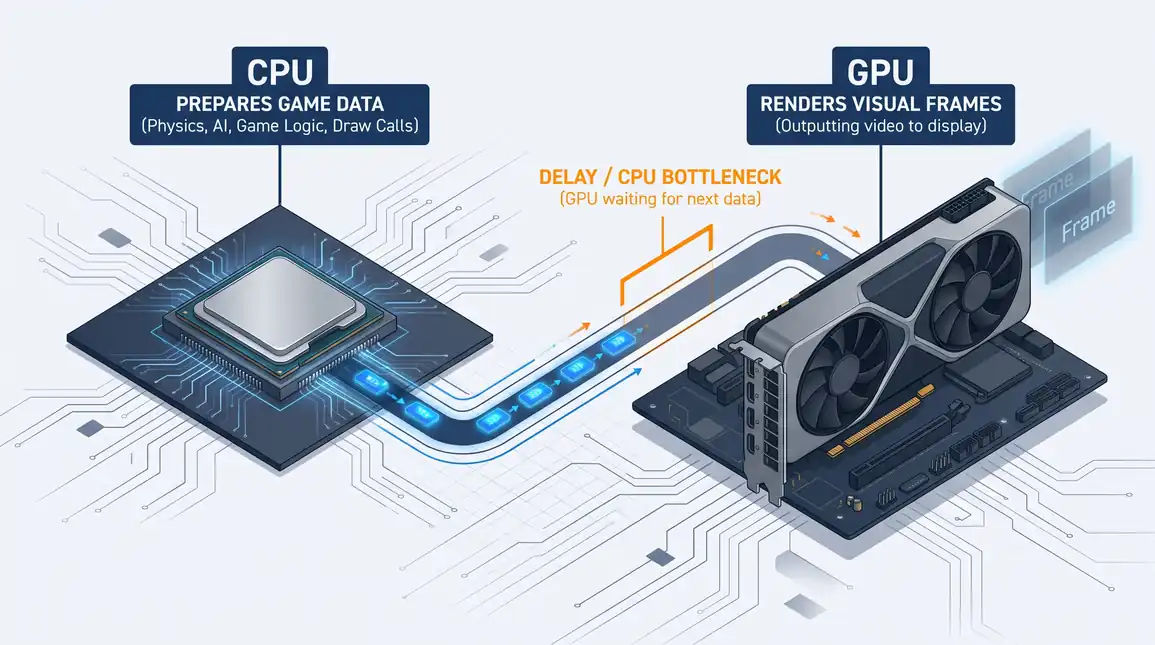
A CPU bottleneck occurs when your processor cannot prepare frames as quickly as your graphics card can render them; consequently, the GPU remains partially idle, and your frame rate (FPS) or frame pacing is negatively affected. This is not a defect. It simply means that the CPU is the component determining the performance limit for a specific game at a given resolution. The quickest way to verify this is by monitoring the per-core CPU load and the GPU load during actual gameplay: if one core is pinned near its maximum capacity while GPU utilization remains below its full potential, you are likely CPU-limited.
Every frame you see is prepared by the CPU and then drawn by the GPU. When the CPU takes longer to prepare a frame than the GPU takes to draw it, the GPU finishes its task quickly and is left waiting. In such a situation, the system is said to be CPU-bound.
Common symptoms include:
This becomes particularly evident in challenging scenarios, such as large-scale battles or densely populated cities, where the CPU must process a significantly greater workload related to game logic, physics, and AI (artificial intelligence).
Think of each frame as a “hand-off.” The CPU handles game logic, object positions, physics, and “draw calls” (instructions that tell the GPU what to render), and then sends the prepared batch to the GPU. If this hand-off is delayed, the GPU is left waiting.
This leads to two key observations:
Many games still rely heavily on a single primary thread; consequently, the speed of an individual core is often more important than the total number of cores.
The CPU is not always the root cause. Here are some common reasons:
Core scheduling, cache, and the number of threads are also significant factors. On a chip that features both performance and efficiency cores, it is essential for a game, and its main thread, to run on a high-performance core. Similarly, a larger cache, such as the additional cache found in X3D chips, can be beneficial for games that frequently access large amounts of data. Conversely, a game that distributes its workload across only a few threads derives no meaningful benefit from extra cores, as it never utilizes them.
| Limit type | What it means | What to check |
|---|---|---|
| Single-core | The game relies on one fast thread, so per-core speed decides performance even on a many-core chip. | One core pinned while others are mostly idle |
| Multi-core | The game spreads work across threads, and extra cores help most when you stream, record or run other apps. | Many cores heavily loaded at once |
| Platform | Slow memory or a weak board causes stutter regardless of the CPU model. | RAM speed, enabled memory profile, thermals |
Check thread load, memory and motherboard before concluding the CPU itself is too slow.
Changing the resolution has a much greater impact on the GPU’s workload compared to the CPU’s. A higher resolution means an increase in the number of pixels per frame, whereas the CPU’s workload per frame remains roughly the same.
| Resolution | Typical result |
|---|---|
| 720p | It is more likely that the bottleneck is on the CPU side. |
| 1080p | The GPU completes frames quickly, so it is highly likely that the CPU will become the bottleneck, especially at high refresh rates. |
| 1440p | The GPU works harder, so a better balance is often maintained between the two. |
| 4K | Usually, it is the GPU that becomes the bottleneck. |
| 8K | It is more likely that the bottleneck is on the GPU side. |
There are two practical points to follow. A CPU-limited frame rate will not increase simply because you buy a faster GPU. Furthermore, you should always test at the resolution at which you actually play.
Use the actual gameplay, not the menu screen, during a demanding section. Play the game for 5 to 10 minutes while recording data for both the CPU and GPU.
Use an on-screen overlay, such as MSI Afterburner or the ‘GPU Busy’ metric in PresentMon, which shows exactly how long the GPU is actively working during the duration of each frame. If the GPU load is significantly below its maximum capacity, yet the FPS is still not where you would like it to be, it indicates that the issue lies with the CPU. Similarly, if you experience stuttering in the game when many enemies appear, or when you enter an area densely populated with objects or characters, this also points to the same issue.
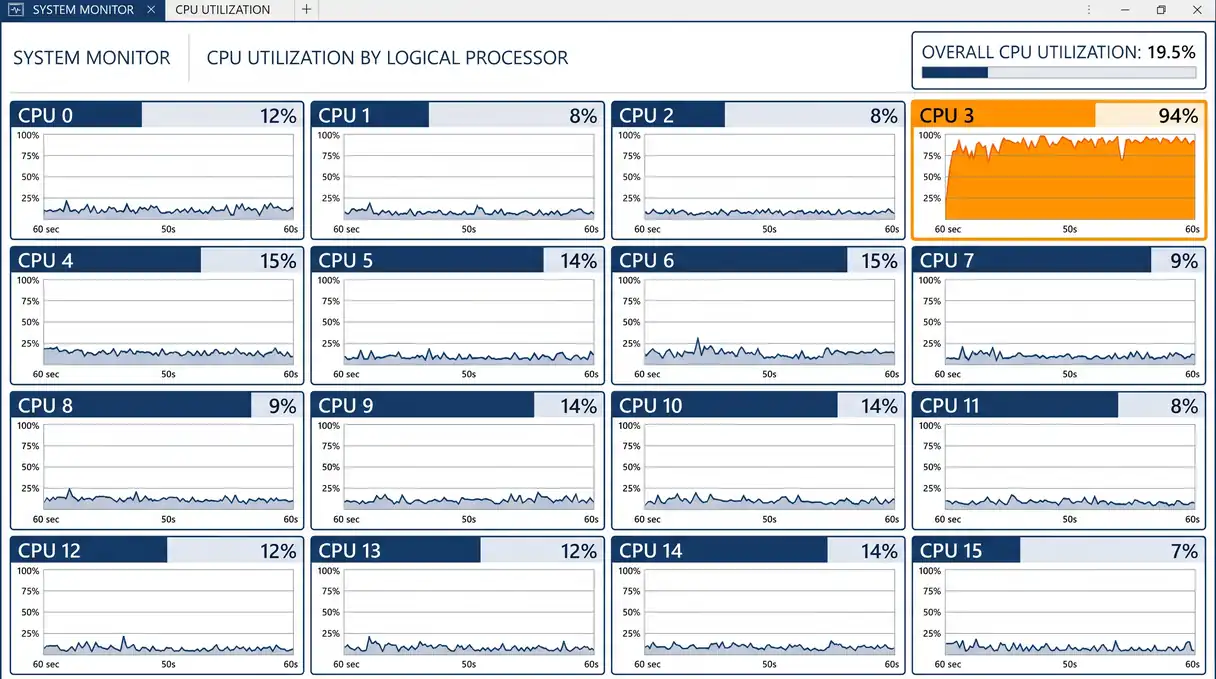
Total CPU usage might appear moderate (for example, 60%), even while one core is fully saturated and acting as a bottleneck. Examine each core individually; if one core reaches approximately 90–95% usage while GPU utilization remains low, it is a strong indicator of a CPU bottleneck. You do not need any additional software for this: the Windows Task Manager displays per-core usage alongside GPU utilization (go to the Performance tab, select CPU, and change the graph view to “Logical Processors”).

First disable frame caps and V-Sync, then lower the resolution a notch or two and play the same scene with the same settings. If the FPS does not change, then the limit is from the CPU, and if the FPS increases, then the limit is from the GPU. For a complete step-by-step procedure, see Resolution Bottleneck: Is Your Monitor Too Much for Your PC?.
Sudden frame-time spikes during demanding scenes confirm a CPU bottleneck. The 1% low FPS figure, the average of your slowest 1% of frames, often reveals a weak CPU even before the average FPS does.
There is no single, universal limit for GPU usage that applies to everyone. As a general rule of thumb, if a core is operating at full capacity (i.e., 100% utilization) while GPU usage remains consistently quite low, this is a situation that warrants attention. However, your own test results are more significant than any predetermined threshold.
| Factors | CPU bottleneck | GPU bottleneck |
|---|---|---|
| GPU usage | Low to moderate | At or near full |
| Effect of lowering graphics settings | Little or none | Immediate FPS gain |
| Effect of lowering resolution | Little or none | FPS rises |
| Typical symptom | Stutter, poor 1% lows | Steady but lower FPS |
| Right fix | Faster CPU, memory tuning, lighter CPU-heavy settings | Lower settings or a faster GPU |
Confusing the two leads to a waste of money; therefore, ensure an accurate diagnosis first. For the other side of the comparison, see the GPU bottleneck guide.
Bottleneck calculators display a percentage that provides an estimate of the extent of the mismatch between the CPU and the GPU. A common practice is as follows:
| Calculator figure | Typical label |
|---|---|
| Under 10% | Balanced |
| 10 to 19% | Minor |
| 20% and above | Severe |
The same banding is used on every page of the site, so wherever you see a number, it means the same thing. An exception to this is for ‘GPU-limited’ results: if a ‘GPU-limited’ result is between 10 and 35 percent, it is displayed as “GPU-bound (normal)” rather than a warning, while 35 percent or more is still considered severe. To learn how the score is derived, see: How we calculate the bottleneck percentage.
Consider these bands merely as general guidelines, not as definitive benchmarks. The ranges may vary between different tools, and the same hardware pairing can yield different performance levels at 1080p versus 4K resolution. Calculators cannot account for your specific games, settings, or drivers. Use the percentages for a rough comparison of hardware pairings, but rely on actual fps and frame-time data from your specific games before making a final purchasing decision.
| CPU | GPU | Game | Resolution | Settings | Average FPS | 1% Low FPS | GPU Usage |
|---|---|---|---|---|---|---|---|
| Ryzen 7 7800X3D | RTX 4090 | Star Wars Jedi: Survivor | 1440p native, no upscaling | Epic preset, ray tracing on, no frame gen | 60–70 | not measured | 50–60% (overlay showed 62%) |
| Ryzen 7 7800X3D | RTX 4090 | Baldur's Gate 3 | 4K, no upscaling | Ultra | 120 | 73 | 75% |
| Core i5-14600KF (4 P-cores only, HT + E-cores off) | RTX 4070 Super | Cyberpunk 2077 | 1440p | DLSS Performance | 82 | 52 | 49% (30–50% range) |
Two examples from the table show the point clearly:
Plan a meaningful upgrade. Choose a CPU with clearly superior single-threaded speed and cache, ensuring it is well-matched to your GPU and the resolution you use. Small, incremental steps within the same generation rarely make a significant difference. Before you buy, read how to pair a CPU and GPU and the best gaming CPU for GPU hub, then check your own CPU and GPU pairing.
Increase the resolution or graphics settings to shift more of the load onto the GPU, and ensure that the CPU is not overheating or experiencing thermal throttling. If your cooling solution allows for it, a mild overclock might yield a few extra frames. If a significant performance gap persists, upgrading to a faster CPU is the long-term solution, as software tweaks have their limitations.
No; this is a GPU-limited system, which is an ideal state for gaming. Overall CPU usage can be misleading: 40% might mask one or two cores that are maxed out at 100%, so be sure to check the load per core. To verify, lower the resolution: if the FPS remains the same, then the CPU is the limiting factor.
No; a bottleneck is simply a performance mismatch, so it cannot damage the CPU or any other component. The only consequence is a loss of frames. CPUs are designed to handle heavy workloads over long periods. The real risk of damage comes from poor cooling, so keep an eye on temperatures.
Pair components from the same performance tier, for example, match a mid-range CPU with a mid-range GPU. If you are planning a GPU upgrade, opt for a slightly more powerful CPU, choose a resolution that suits your GPU, and consult benchmarks for your specific combination. Treat "bottleneck calculators" merely as a rough guide.
Yes. Every PC has some form of bottleneck, as one component is inevitably the "weakest link"; at 5%, you will rarely even notice it. Furthermore, the percentages provided by calculators are only rough estimates, since every game places different loads on the CPU and GPU, real-world gaming benchmarks offer a much more accurate picture.
Not necessarily. An overall usage figure of 80% doesn't tell you much, as a game might fully saturate one or two cores while the others remain idle. It only becomes a bottleneck if GPU utilization remains significantly below its potential and your FPS fails to increase. High GPU utilization alongside 80% CPU usage is actually a perfectly fine (and healthy) outcome.