
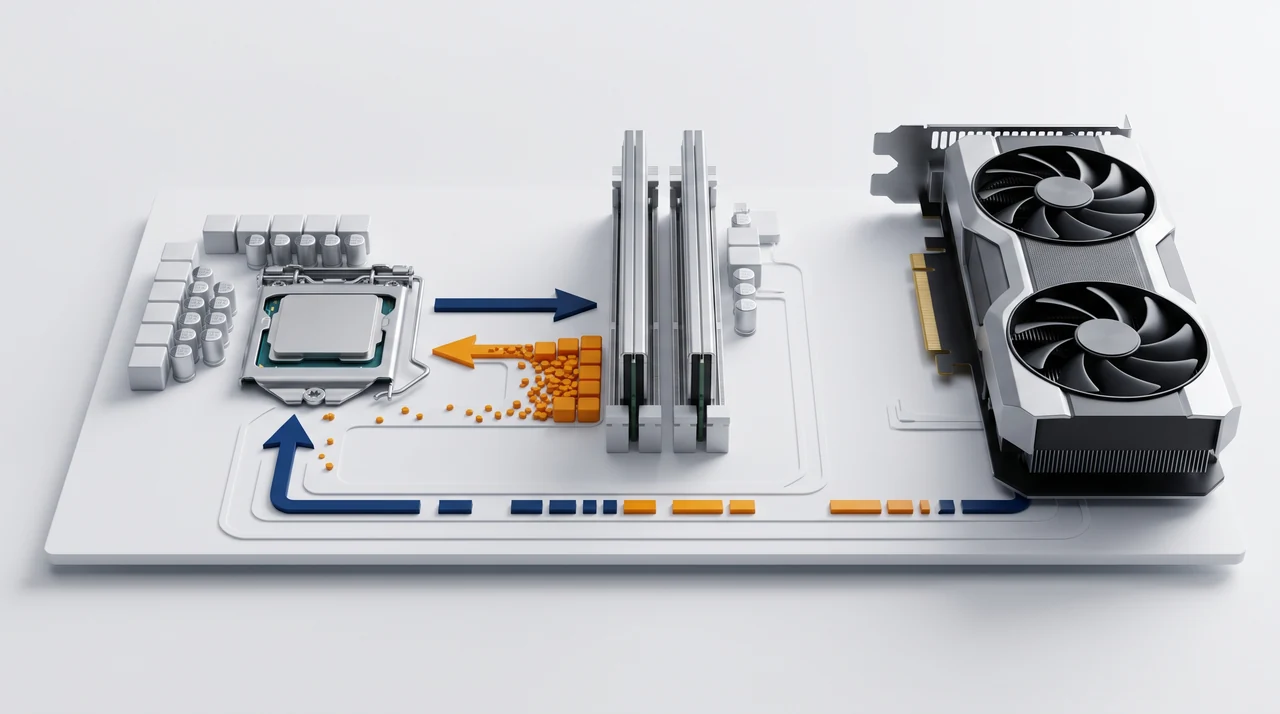
RAM bottlenecks occur when system memory capacity, bandwidth, or configuration limits PC performance. This can lead to stuttering, inconsistent frame times, and poor 1% low frame rates, even when the average FPS appears normal. Before purchasing an upgrade, check your memory usage, channel configuration, and XMP or EXPO settings. The right solution depends on what exactly is limiting your system. Memory is one of the factors in the calculator score, see how we calculate the bottleneck percentage.
The CPU continuously retrieves game data from the system memory (RAM), including assets, the current state of the game, and instructions for the next frame. If the RAM has insufficient capacity, operates at a slow speed, or is poorly configured, this data arrives with a delay, resulting in an inconsistent delivery of frames.
This system is RAM, not video memory. VRAM (Video RAM) is located on the graphics card, and it is covered in the guide regarding VRAM bottleneck.
It is easy to misdiagnose a RAM bottleneck. When a game stutters, the average FPS might still look fine, leading many to blame the graphics card. Look at the 1% lows and frame times, not just the average.
None of these prove that the RAM itself is the cause. Slow storage, a CPU bottleneck, or overheating can present similarly, so verify this using the steps provided below.
Press Ctrl+Shift+Esc, open the Performance tab, and click on Memory. Run a resource-intensive scene for a few minutes. If memory usage remains very high (typically above 85–90%) and the stuttering lines up with spikes in disk activity, it is possible that Windows is swapping data to the drive.
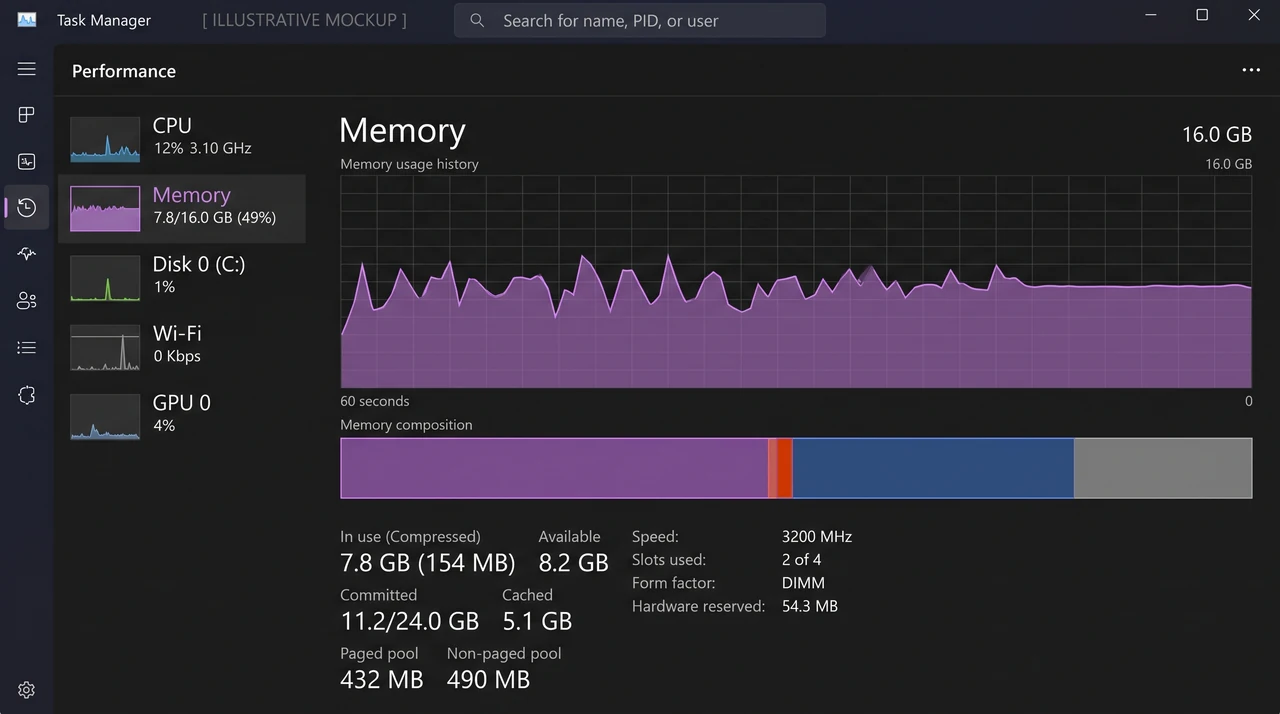
On this ‘Memory’ screen, check the ‘Speed’ and ‘Slots used’. If the speed is lower than the rating listed on your memory kit’s label, the memory profile might be disabled. If you have two memory sticks but only one slot is in use, or if the sticks are installed in the wrong slots, your system might be running in ‘single-channel’ mode.
| Tool | What it shows |
|---|---|
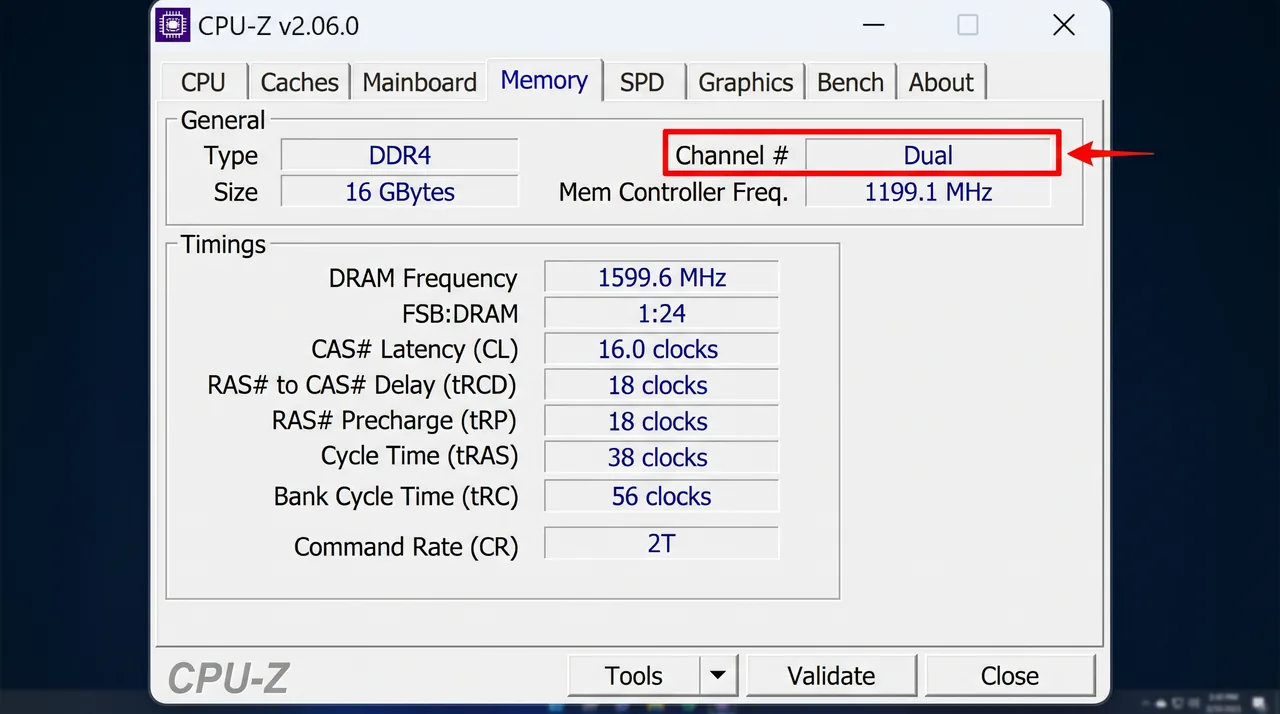
| CPU-Z (Memory tab) | Actual frequency, timings, and channel mode |
| HWiNFO | Memory use and clocks logged over a session |
| MSI Afterburner overlay | RAM use next to FPS and 1% lows while you play |
| MemTest86 | Whether the sticks are stable, if you suspect faulty memory |
These are merely indicators, not definitive proof. Concrete evidence might include: high memory usage and disk activity during stutters, unusual profile settings, or the use of ‘single-channel mode.’ If the GPU is operating well below its full capacity even during severe stutters, it suggests that the issue stems from a bottleneck related to data or the CPU, rather than the graphics card itself.
Capacity and channel setup both matter, and neither one alone decides performance. When the RAM fills up, Windows moves data to the drive, which is much slower than memory, causing freezing and stuttering, and a single stick in single-channel mode halves the available bandwidth even when capacity is enough.
| Capacity | What to expect for gaming |
|---|---|
| 8GB | Often too little for modern games, especially with background apps |
| 16GB | A workable minimum; can get tight with a browser, launcher, and voice chat open |
| 32GB | A comfortable choice for most gamers who multitask or play large open-world games |
| 64GB | No benefit for most gaming; makes sense for video editing, 3D work, or virtual machines |
Game requirements vary depending on the title and settings, so check the specific requirements for your game. If the stuttering increases during a long session, memory exhaustion is a possible cause.
Placing two matching sticks in the correct slots allows the CPU to utilize two memory channels, which roughly doubles the theoretical bandwidth compared to using a single stick. The real-world benefit depends on the game, the resolution, and the CPU. The difference in average FPS during GPU-bound gaming at 1440p or 4K is typically small. Conversely, in CPU-bound scenarios, especially at 1080p or when looking at the 1% low figures, the impact can be significant. Therefore, single-channel memory is most consequential when the system is CPU-limited.
To get dual channel:
One point about DDR5: Each DDR5 stick has internal subchannels, but one stick is still not the same as a dual-channel setup of two sticks.
Ryzen X3D processors use a larger L3 cache and are often less sensitive to memory configuration, but they are not immune. Don’t consider this a reason to run single-channel.
Faster RAM helps the most when the CPU is limited, such as with refresh rates at 1080p. When the GPU is limited, such as at demanding settings at 4K, faster RAM usually makes little difference.
On AMD Ryzen, memory speed and internal fabric clock are linked, so Ryzen builds are often more sensitive to memory selection. As a general guideline, DDR5-6000 with low latency (e.g. CL30) is a popular balanced choice for modern AMD platforms, and DDR4-3200 to 3600 is a sensible range for DDR4 systems. Check your motherboard’s supported memory list before buying.
Illustrative example (not measured results): in a CPU-bound game at 1080p, two matched sticks in dual channel typically give smoother 1% lows than a single stick, and tuned faster memory can lift average FPS a little, while at GPU-bound 1440p or 4K the same changes usually make little difference. Your own results will vary by game, CPU, and settings, so treat this as a pattern to test on your own system, not as a benchmark result.
Most kits start at a conservative default speed so that they will boot on any board. The advertised speed sits in a profile that the motherboard doesn’t use until you enable it. If your Task Manager speed is lower than the box’s rating, the profile is likely locked.
| Name | What it is |
|---|---|
| XMP | Intel's profile format, also read by many AMD boards |
| EXPO | AMD's profile format for newer Ryzen platforms |
| DOCP, EOCP, A-XMP | Motherboard-maker names for loading an XMP profile on an AMD board |
For most users, the choice is simple: enable the profile that comes with your kit. On a new AMD build, an EXPO kit is a good fit.
To enable it:
A profile is technically a factory-tested overclock. If the system is unstable, update the BIOS first, then try a slower profile or run MemTest86. Check your memory maker’s warranty terms if you have concerns.

They are not interchangeable. The slots are keyed differently, and the memory controller supports one type. Check your motherboard’s specifications before buying, as some chipsets were sold in both DDR4 and DDR5 versions. For new builds, DDR5 is the usual choice. If you already own a DDR4 board, upgrading the capacity or enabling the profile is usually better than switching platforms.
Work your way from free to paid:
Retest the same scenario after each change so you know what helped. If a fix means a new platform or a new CPU, see how to pair a CPU and GPU before you buy.
Memory tuning has limits. Look elsewhere if:
Yes. Slow memory or a single-channel setup can hinder the CPU, which in turn limits the GPU. The CPU ends up waiting for data, which lowers the minimum frame rate and causes stuttering. Using two sticks in a dual-channel configuration at a decent speed helps prevent this. Insufficient RAM capacity can also lead to slowdowns, especially when multitasking.
For gaming alone, it exceeds the requirements of most games, though it is no longer considered "excessive." Games often utilize 10GB or more, and 32GB provides necessary headroom for background applications and modern titles. Heavily modded games can easily fill this capacity. 16GB is still sufficient for basic gaming, while 64GB is excessive for gaming alone.
Watch memory use while you play. Open Task Manager, open the Performance tab, and check the Memory section. If memory usage stays above 85–90% and stutters line up with spikes in disk activity, Windows is likely swapping data to the drive, which points to a RAM bottleneck. Also check CPU-Z to confirm you are running in dual-channel mode and that the speed matches your kit's rating.
Slightly. In most games, faster RAM only provides an increase of a few FPS. This provides the most benefit in CPU-bound games and low-resolution gaming, while there is hardly any change in GPU-bound games. A clear advantage is smoother 1% low frame rates. Integrated graphics can see gains of 10–15%. Capacity and dual-channel configuration are more important than extra megahertz (MHz).
Only if you are running out of memory or running in single-channel mode. If Task Manager shows memory use near full and the drive is busy during stutters, adding capacity or a matched second stick can help. If memory use stays well below full and you already run two matched sticks in dual-channel mode, extra capacity will not raise FPS. Look at the CPU, GPU, or storage instead.