
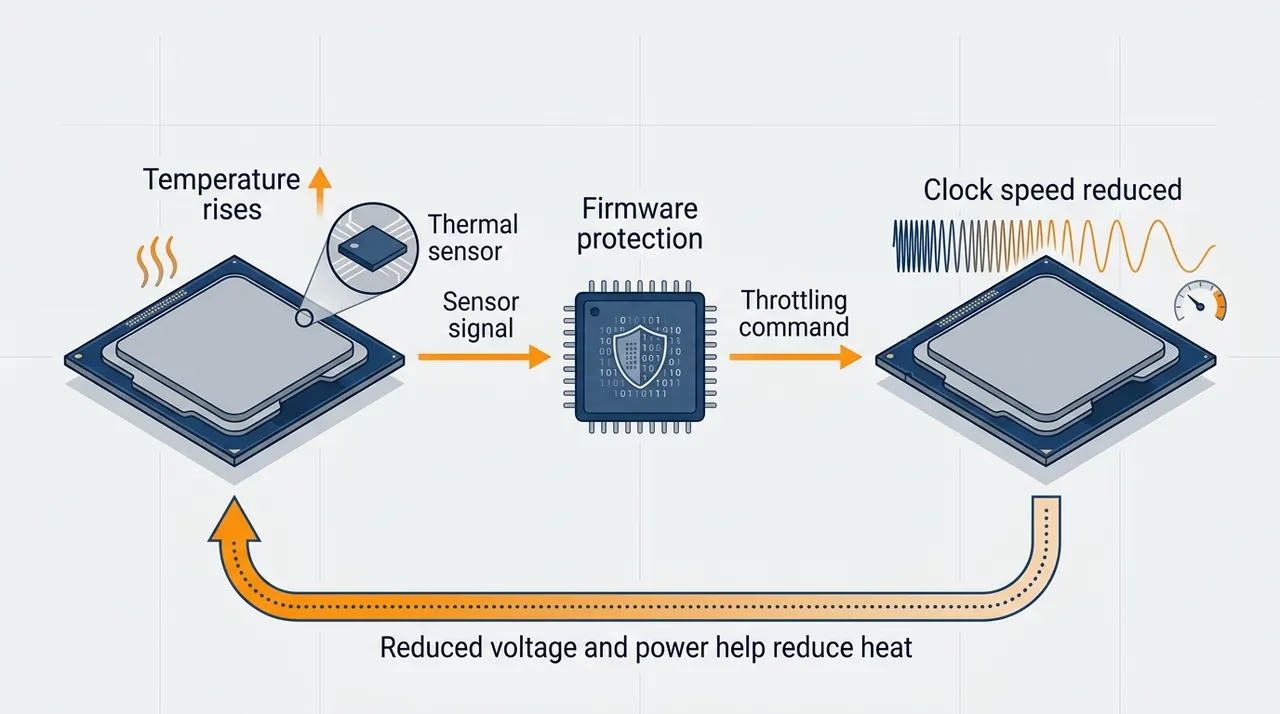
Thermal throttling occurs when your CPU or GPU intentionally slows down because the cooling system cannot dissipate heat quickly enough. Many people refer to this as a thermal bottleneck; both terms mean the same thing in the context of this page. There are no warning lights or error messages, the machine simply slows down, quietly.
It is easy to confuse this with a hardware mismatch, but the two phenomena behave differently over time. A mismatched CPU and GPU will exhibit poor performance from the very first minute. Throttling, by contrast, typically begins gradually and worsens as heat builds up. This guide explains how thermal throttling works, which temperatures actually matter, how to verify it using a 20-minute test, and the correct sequence of steps to resolve it. To see how the percentage obtained from the calculator relates to these readings, please refer to our guide on how we calculate the bottleneck percentage.
Modern chips contain thermal sensors that report to the firmware, not to Windows. When a sensor indicates that the chip is approaching its limit, the firmware reduces the voltage and clock speed within milliseconds, a response far faster than any fix implemented by an operating system. Lower voltage results in reduced power draw and less heat, ensuring the chip’s survival. This is a protection mechanism, not a performance feature.
In HWiNFO, the “distance to TjMAX” reading indicates how many degrees remain before the firmware intervenes. When this value reaches zero, clock speeds drop from their peak boost levels to a “survival” speed.
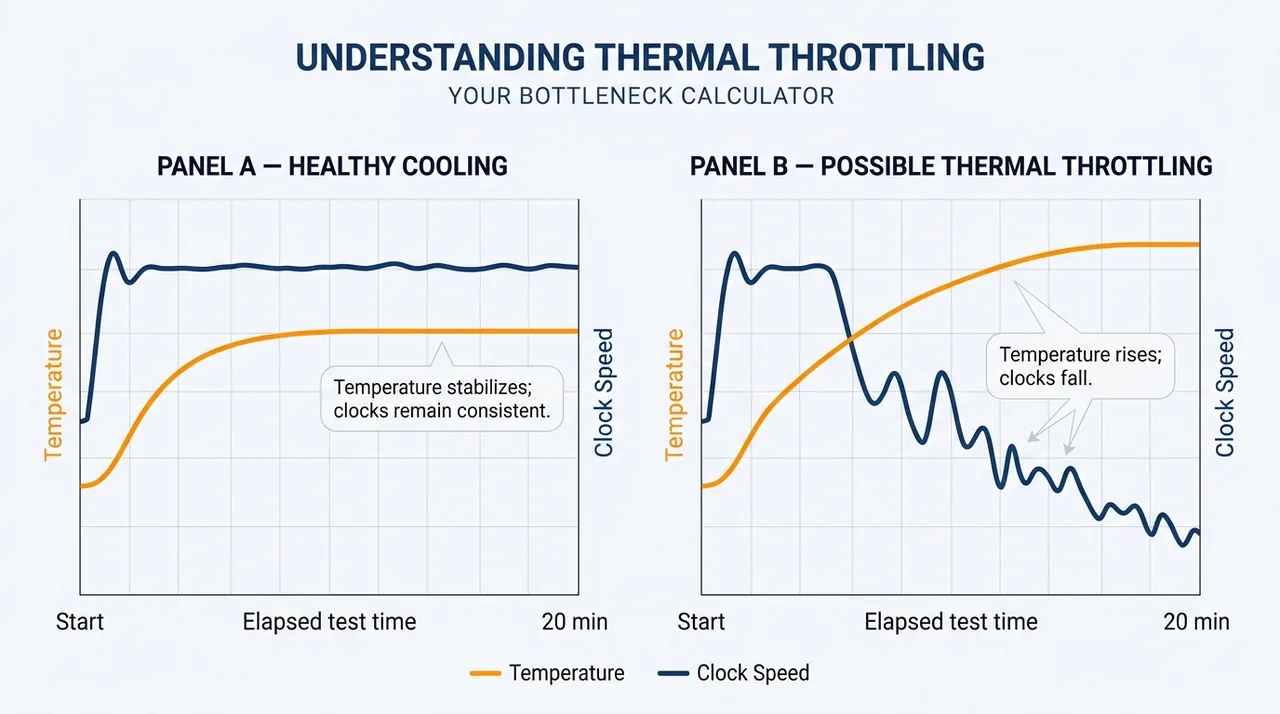
Throttling is a curve, not a cliff. As the temperature rises, the chip struggles to maintain its boosted clock speeds, eventually yielding in increasingly large steps. This often creates a fluctuating pattern: clock speeds recover for a few seconds, the heat builds up again, and the speeds drop once more. The result is uneven frame delivery, with some frames arriving on time and others late, which manifests as stuttering, even when the FPS counter appears perfectly fine.
There is no single specific ‘safe number.’ Every chip has its own limit; therefore, instead of relying on a forum post, check the manufacturer’s specifications to determine the limit for your specific chip.
| Situation | Typical range stated on this page |
|---|---|
| Desktop CPU at idle | About 35-50°C |
| Desktop GPU at idle | About 30-45°C |
| Ryzen 7000 chips under heavy load | Designed to run at up to 95°C |
| Laptop CPU and GPU under load | 85-95°C is often normal |
| Sustained load while clock speeds drop | Temperatures climb toward 90-100°C |
| Gen4 NVMe SSD without a heatsink | Can begin to throttle at around 83°C |
These are typical ranges mentioned on this page, not specifications for your chip. Always check the maker’s specification for your exact model.
Two points prevent this table from misleading you:
On Ryzen processors, HWiNFO reports the Tctl/Tdie temperature relative to the chip’s thermal limit. For graphics cards, also check the VRAM temperature. If the memory runs hot while the core remains at a comfortable temperature, it indicates a problem with memory cooling. Refer to our VRAM bottleneck guide.
If the temperatures seem fine but you experience issues when new areas load, check your drive instead. A Gen4 NVMe SSD without a heatsink can begin to throttle at around 83°C within minutes. Take a look at our storage bottleneck guide.
On a desktop, CPU throttling manifests as a user interface that feels sluggish, Windows lags, multitasking becomes sluggish, and rendering tasks take significantly longer than they should. In extreme cases, the PC may shut down abruptly, without even displaying a “blue screen”, as a last-resort protective measure. View this as a clear signal that the cooling system requires immediate attention, rather than as proof that the hardware has failed.
Three different issues produce the same symptom: low clock speed and low FPS. The solution depends on which issue you are facing.
Distinguish between thermal limits and power limits: observe temperature and power consumption simultaneously. If a power limit is reached first, a better cooler will not help. Intel’s XTU (Extreme Tuning Utility) displays these flags separately: Thermal, Power Limit, Current/EDP, and Motherboard VR Thermal. Before making any changes, check which flag is active.
Do not blindly increase power limits. Higher power leads to more heat, effectively turning a power-related issue into a thermal one. Some motherboards ship with default power limits set far above the chip maker’s specification. Use the chip maker’s default settings and ensure your BIOS is updated. When in doubt, revert everything to stock settings and re-test, as custom voltages or PBO (Precision Boost Overdrive) adjustments can skew your diagnosis.
Do not buy new hardware just to fix heat issues. Users who replace their GPU because their FPS has dropped often find that the new card also throttles due to the same poorly ventilated (“hot”) case. If clock speeds drop in conjunction with hitting a temperature limit, then heat is the culprit. If performance is consistently poor from the start, even when temperatures are within a normal range, refer instead to our guides on CPU bottleneck or GPU bottleneck. If you decide to replace components, first read up on how to pair a CPU and GPU so that the new parts are compatible with each other.
What you are looking for is a correlation, not just raw numbers, such as observing temperatures rising while clock speeds drop under a constant load.
Heat-related issues develop gradually, so approach your testing in a measured way.
Compare the end of the run to the beginning. If the same scene runs more slowly later on, heat is the culprit. Perform tests before and after any changes so you can verify what actually made a difference.
A quick additional check: Remove the side panel and run the test again. A significant improvement indicates that your cooler is sufficient but is being “starved” of airflow.
Dust accumulates on heatsink fans and intake filters, eventually obstructing airflow, even a thin layer can act as an insulator. This buildup occurs so gradually that most people only notice it once thermal throttling begins. Poor case airflow, caused by tangled cables, blocked intakes, or the lack of a clear front-to-back path, has the exact same effect.
The CPU temperature tracks almost exactly with the room temperature, because the cooler can only function using the air that is supplied to it. This is why a PC that performs fine in the winter might struggle, or “choke”, in the summer. Enclosed cases are particularly problematic, especially for pre-built systems.
The thermal compound between the chip and the cooler dries out over time, increasing thermal resistance; consequently, the same amount of heat results in higher temperatures. Re-applying thermal paste to a system that has not been serviced for a long time can improve temperatures noticeably.
There is no fixed schedule. Repeat the procedure whenever symptoms reappear, for example, if the temperature has gradually risen over the course of a few years and has not improved even after cleaning.
Sometimes, the cooler simply isn’t sufficient. Intel’s stock “Laminar” cooler is rated for 65W chips and cannot handle a 253W i9-14900K. AMD ships the 7950X and 9800X3D without a cooler and recommends liquid cooling. If you are using an old cooler on a new, power-hungry CPU, that is likely the cause of your issue.
Improper mounting can lead to the same symptoms. Common culprits include leaving the protective film on the cold plate, uneven mounting pressure, or reusing old thermal paste after re-mounting the cooler.
A clear sign of a faulty pump is that the CPU temperature rises rapidly, even while the radiator fans are spinning normally. Check the pump speed (RPM) in HWiNFO or the BIOS, and verify that the pump is connected to the correct header (typically AIO_PUMP or CPU_FAN; refer to your manual for the specific designation). Overclocked RAM can also become hot enough to cause performance throttling; for more on this, please consult our RAM bottleneck guide.
A smooth and gradual fan curve, one that increases speed in a predictable manner rather than showing sudden, sharp spikes, not only keeps noise under control but also prevents temperatures from spiraling out of control. If a graphics card that is otherwise in good working order is operating near its thermal limit, the first thing you should check is the fan curve.
Follow this sequence, and after each step, re-run the 20-minute test.
Both air coolers and all-in-one (AIO) liquid coolers can work well when they are sized to the chip’s power draw and given enough case airflow. For an AIO, install the radiator where it can receive fresh air, position the pump lower than the highest point of the radiator, and verify that the pump is running. For an air cooler, check that the heatsink is seated firmly, the fan has a clear path for intake and exhaust, and the cooler is rated for the chip it has to cool.
Laptops experience thermal throttling due to physical constraints and poor design. The CPU, GPU, and often the SSD share a small heatsink connected to thin heat pipes, all within an environment with limited airflow. Managing approximately 105W of combined heat inside a chassis the size of a textbook presents a challenge vastly different from that of a desktop PC, which has ample space for airflow.
Thermal throttling in a GPU is a built-in safety mechanism that slows down performance. When the chip becomes too hot, it reduces its clock speed and power consumption to cool itself down. This is why your frame rate (FPS) might start off strong, only to drop or cause stuttering after 15 to 20 minutes of gaming. The card isn't broken; rather, it is protecting itself because the cooling system cannot dissipate the heat quickly enough.
It is primarily caused by heat that the cooling system cannot remove fast enough. Factors such as dust accumulation on fans and heatsinks, dried-out thermal paste, an inadequate or poorly fitted cooler, poor airflow within the computer case, blocked laptop vents, or a hot room environment can all cause temperatures to rise. Intensive tasks like gaming, rendering, or video editing exacerbate the issue. Furthermore, thin laptops are particularly prone to throttling because they have very limited space for cooling components.
In the short term, no, because throttling is a form of self-protection, not damage. It lowers the operating speed to prevent the chip from overheating. However, it is detrimental to performance, leading to lower FPS, stuttering, and sluggish operation. If this happens frequently, it serves as a warning sign. Sustained high temperatures can accelerate the wear and tear of the chip over time, so the underlying cooling issue should be addressed.
Start with free, simple fixes. Clean dust from fans, heatsinks, and vents; improve airflow within the case; and set a more aggressive fan curve. Close resource-heavy background applications and ensure vents remain unobstructed, this is especially important for laptops. If these steps aren't enough, consider replacing old thermal paste, undervolting, limiting power consumption, or upgrading to a better air cooler or an AIO (All-in-One) liquid cooler.
If you disable it, the chip will continue to run at full speed even as its temperature rises. This can lead to sudden shutdowns, system crashes, or permanent hardware damage if the cooling system fails, potentially resulting in a completely dead CPU or GPU. In any case, most systems do not allow you to fully disable these hardware safety mechanisms. It is far safer to address cooling issues than to disable the protection that prevents overheating.
Monitor both the temperature and clock speed simultaneously while gaming or running a stress test. If the temperature approaches the limit, typically between 90°C and 100°C, and the clock speed drops while usage remains high, that is thermal throttling. You may also notice a drop in FPS, louder fan noise, and stuttering after a few minutes of operation. Tools such as HWMonitor, HWiNFO, or MSI Afterburner make it easy to monitor this in real-time.
No, you should leave it enabled. Throttling prevents the CPU from overheating, which could otherwise lead to a shutdown or hardware damage; disabling it does not solve the underlying problem. If throttling is causing you issues, address the cooling instead: clean out dust, improve airflow, reapply thermal paste, or upgrade your cooler. Only experienced users with robust cooling solutions attempt to push past these limits, and even then, it remains a risky endeavor.