
An FPS bottleneck is the single component that sets the highest frame rate your PC can reach in a given game. Frames per second, or FPS, is simply how many complete images your system produces each second. The graphics card draws each image, but only after the processor has prepared it, so whichever side finishes its part slower caps the number for both.
The result is a bottleneck between what your parts could do on paper and what actually reaches your monitor. A strong graphics card paired with a weak processor produces the classic symptom: high settings look fine in menus, then inconsistent fps the moment the action starts. This page explains how to name the limiter, test it, and decide what to do about it.
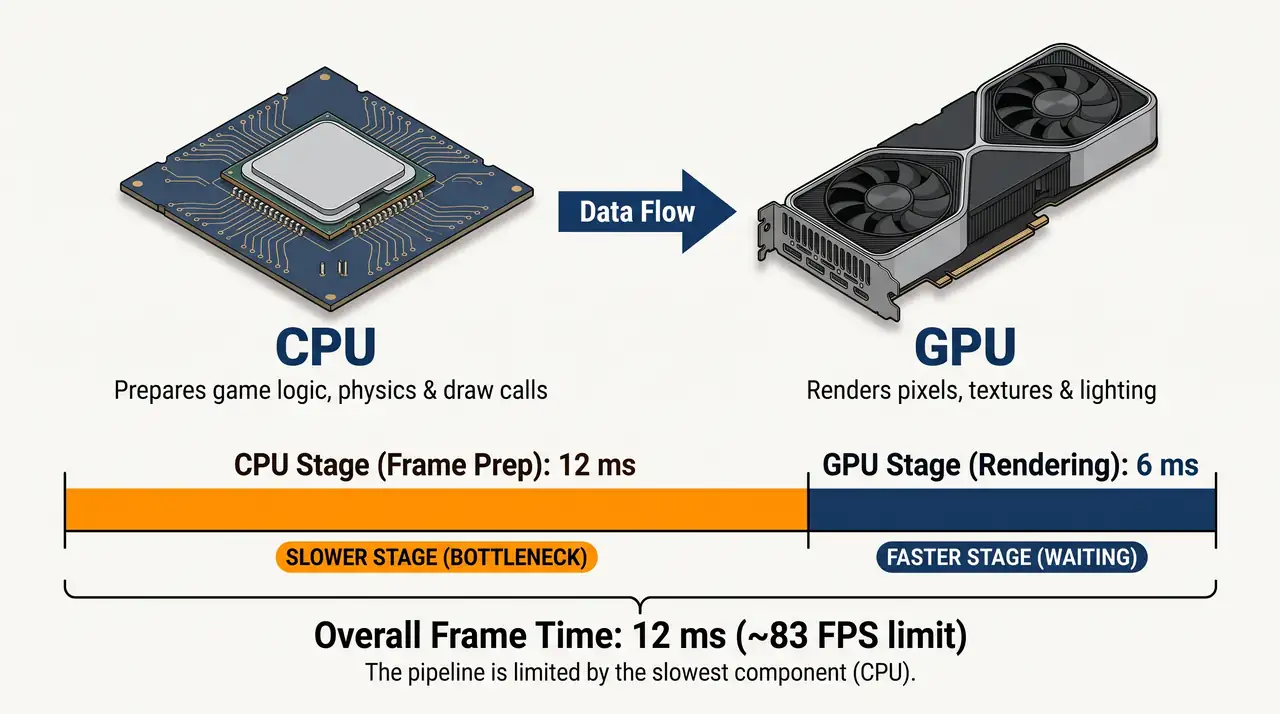
Every frame passes through two stages. First the processor handles game logic, physics, and AI, then issues the draw call instructions the graphics card needs. Then the card shades pixels, applies textures, and resolves lighting. Neither stage can start the next frame until both finish the current one, so the slower stage sets the pace for the entire pipeline.
A simple illustration shows why. If the processor needs 12 milliseconds to prepare a frame and the card needs 6 to render it, the pipeline completes one frame every 12 milliseconds, which lands near 83 FPS no matter how much faster the card could go, and the 1% low fps number drops first in this state, because the slowest frames are the ones where the card sat idle. Comparing gpu busy time against total frame time, as covered in the measurement section below, shows exactly which stage spent its time waiting.
Some part always sets the ceiling. If nothing limited performance, frame rates would rise without bound, which never happens on real hardware. The practical question is never whether a bottleneck exists, but whether the limiting part is the one you want.
For gaming, the graphics card is the limiter you want. A system where the card runs at 95-100 percent while the processor keeps up delivers steady fps with smooth frame times at whatever number the card can sustain. A small imbalance, under 10 percent on a calculator, is not worth acting on; chasing a perfect zero costs money and gains nothing.
The two limits look different in practice. This table gives the working signatures; the diagnosis section below explains how to confirm each one.
| Symptom | CPU-limited | GPU-limited |
|---|---|---|
| Graphics card usage | Low, often below 80%, while one or two processor cores run flat out | High, typically 97 to 100%, with processor headroom to spare |
| Lowering resolution | FPS barely changes | FPS jumps dramatically |
| Lowering graphics settings | Little effect, since those sliders mostly load the card | Clear FPS gain |
| Frame delivery | Rough frame pacing with hitching in busy scenes | Even pacing at the card's sustained rate |
| Where it shows up most | 1080p high-refresh and simulation-heavy titles | 1440p, 4K, and ray tracing showcases |
A CPU limit often hides behind maxed threads: total processor usage can read a modest 50% while a single choked thread caps everything, as the percentage section explains. A GPU limit is simpler and healthier: the card does the heavy lifting it was built for. For the full treatment of each side, see the CPU bottleneck page and the GPU bottleneck page.
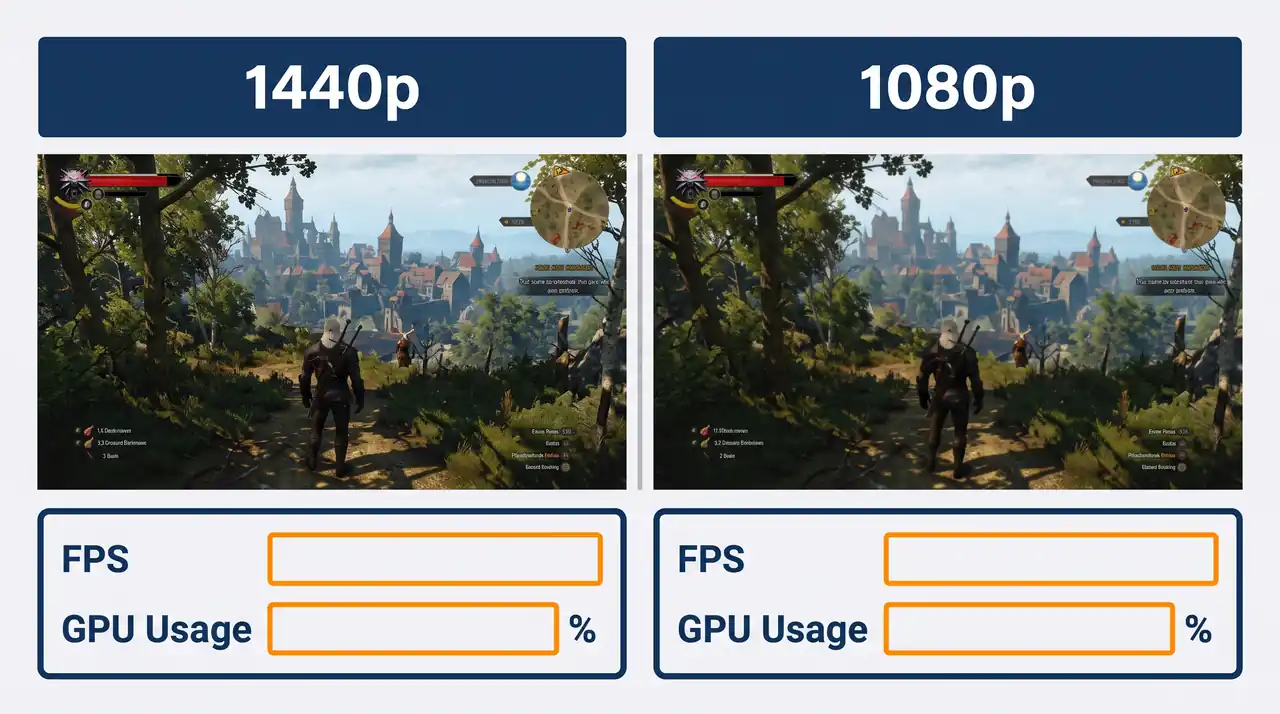
Resolution decides how much work each frame demands from the graphics card, and that decides which component hits its ceiling first. At lower resolutions the card finishes quickly and the processor becomes the limiter; at higher resolutions the card carries the load. Refresh rate multiplies the effect: a 144-360hz target forces the processor to prepare far more frames per second, which can drag an otherwise balanced system toward a CPU limit. Always judge a pairing at the resolution and frame target you actually play, since any other combination answers a question you didn’t ask.
Only 2.07 million pixels per frame need shading, so a modern card finishes each frame fast and waits. The processor must prepare frames at a punishing pace, which is why competitive shooters chasing 200-300 fps expose weaker processors first. If your main games live here, processor speed matters more than extra graphics power.
The sweet spot for most builds. The card works hard enough that the processor is rarely the ceiling, while frame rates stay high enough for high-refresh monitors. Use it as a baseline when comparing parts: if a pairing runs smoothly here, the balance is genuinely good.
Pixel count quadruples over 1080p to 8.29 million per frame, and the graphics card becomes the limit on nearly every system. Even older processors keep up because the card is the long pole in the tent. Expect the card pinned near maximum at 4k ultra settings, especially with ray tracing enabled.
| Resolution | Typical limiter | Why |
|---|---|---|
| 720p | CPU, especially at high FPS | Reducing the load on the GPU may reveal CPU limitations. |
| 1080p | CPU, especially at 144 Hz and above | The number of pixels is low, so the GPU completes frames quickly and then waits for the CPU. |
| 1440p | Balanced | The load is distributed more evenly, making it an excellent baseline for comparing components. |
| 4K | GPU, in most games | Pixel load dominates, but CPU limitations may persist. |
| 8K | GPU, in most games | Four times the pixels of 4K |
Games divide labor differently. Strategy and simulation titles hammer the processor with AI, physics, and hundreds of simulated units; think of a late-game city builder or a flight simulator over a dense metro area. Story-driven AAA games and ray tracing showcases load the card instead, with lighting, geometry, and demanding effects; Cyberpunk 2077 with ray tracing is the textbook example.
Settings split along the same line. Options like crowd density, view distance, and simulation distance tax the processor, while shadows, reflections, and volumetrics tax the card. Matching cuts to the limiter is the efficient move, and the troubleshooting section below walks through exactly which sliders to touch for each case. One caveat: a poorly optimized launch can bottleneck any hardware, and no settings menu fixes a broken engine.
Not every frame-rate problem is the processor or the card. Slow or single-channel memory starves the processor, and the symptom is stutter rather than a clean FPS drop. A game installed on an old hard drive hitches when it streams new areas. Heat makes chips slow themselves down, which looks exactly like a bottleneck on an overlay.
Rule out the free causes first: confirm memory runs at its rated speed, move the game to an SSD, clear dust from fans, and close discord calls and background apps before you measure anything. Laptops with blocked vents are the classic false positive, and a cooling pad costs far less than a misdiagnosed upgrade. Each of these has its own dedicated page if the problem persists after the basics, including the RAM bottleneck guide.
A Bottleneck Calculator compares your parts against real fps data from 100+ games and returns a percentage plus the likely limiting component. It takes seconds and costs nothing, which makes it the right first step before spending money.
Treat the result as estimates, not a verdict. Calculators work from benchmark databases, not your exact settings, background load, or overclock, and no formula knows the one game you actually play. What it CAN do: shortlist suspects and compare two candidate part pairings side by side. What it CANNOT do: replace live measurement, which is where the next three methods come in.
Record FPS in the same in-game spot at your normal settings, then drop to 720p low and record again. A sharp FPS climb points at the graphics card. A flat result points at the processor, memory, or the game engine itself.
What it CAN prove: which side responds when rendering work is removed. What it CANNOT prove: the full picture on its own. Disable any frame cap or vsync first, or you will mistake a cap for an engine limit. A repeatable spot plus uncapped frame rates turns this into real data instead of guesswork.
Install MSI Afterburner with RTSS and run a demanding section of your game with no frame cap. Watch two numbers: graphics card usage and per-core processor usage. A card pinned near maximum with processor headroom suggests a GPU limit; a low card number with one or two cores pinned suggests a CPU limit.
What it CAN show: how your hardware behaves across real scenes, since the limiter can shift minute to minute, and logging sensor data across a full session gives a clearer picture than any single number. What it CANNOT show on its own: whether a pinned core is the game engine’s main thread or a background task stealing cycles, so judge during actual gameplay in the scenes where FPS dips, not in menus. A fully loaded card in a demanding scene is a healthy card.

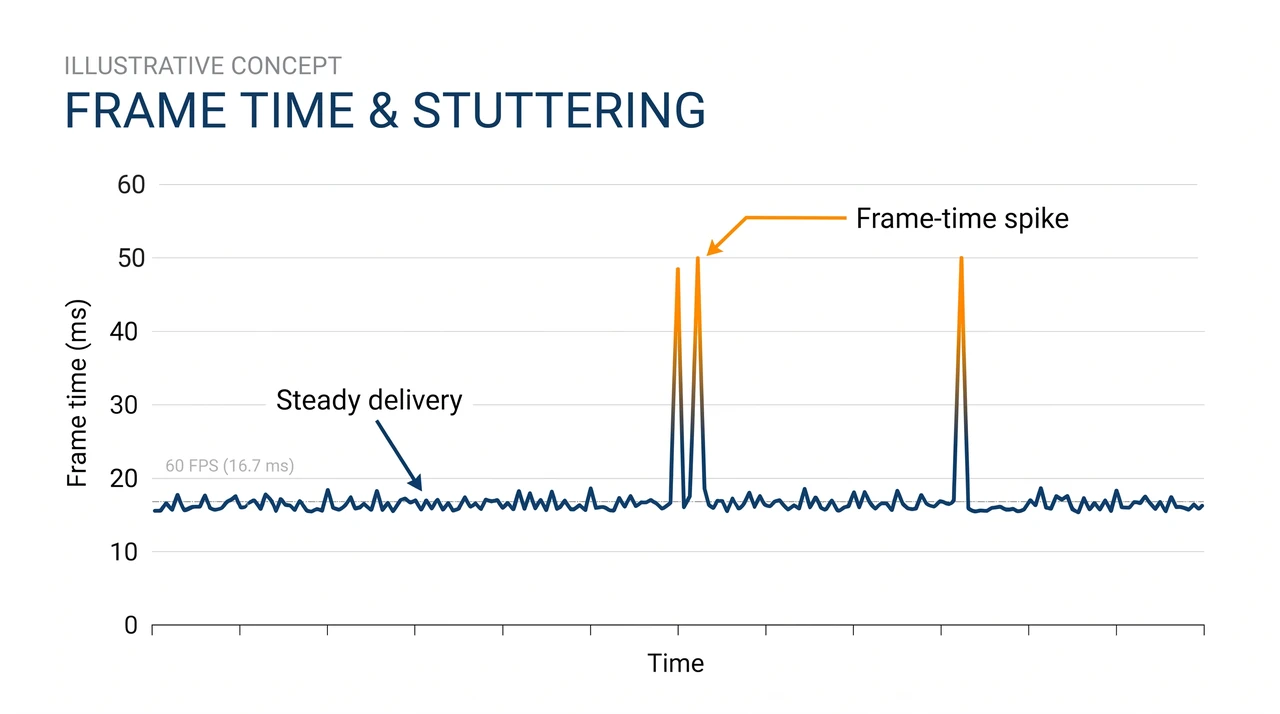
Average FPS hides the moments you actually feel. A game can average 120 FPS and still stutter when individual frames spike: at 60 FPS each frame should take about 16.7ms, and a single 40ms frame reads as a visible hitch even though the average barely moves.
What 1% and 0.1% lows CAN reveal: where the worst frames come from. Record a run with CapFrameX and study the frametime graph: spikes during a heavy rendering moment with the card fully busy mean the scene was simply expensive; spikes where card usage collapses mean the card was waiting for work from the processor, memory, or asset streaming. What they CANNOT tell you: which of those three is guilty, which is why this method pairs with the overlay above. For deeper frame-time data, PresentMon records GPU busy time per frame. Fix the spikes and the game feels smooth; chase the average and you will chase your tail.
| What the overlay shows | Interpretation |
|---|---|
| GPU at 95-100%, with no CPU core near maximum | GPU-limited |
| GPU below full load, with one CPU core pinned near 100% | CPU-limited |
| Low GPU usage while one or two CPU cores are throttling (clock speeds dropping due to heat) | CPU-limited; the bottleneck is on the CPU side, not the GPU |
| VRAM near capacity, accompanied by stuttering or texture pop-in | Potential VRAM limitation; test by lowering texture quality |
| FPS remains flat when resolution is lowered | CPU-limited |
| FPS increases when resolution is lowered | GPU-limited |
Calculator scores come with rough bands. Treat them as triage, not law, and settle close calls with live measurement. This site uses a consistent classification scale throughout: less than 10% is labeled ‘Balanced’, 10% to 19% is ‘Minor’, and 20% or higher is ‘Severe’. If the result falls between 10% and 35% due to being ‘GPU-limited’, it is displayed as “GPU-bound (normal)” rather than as a warning; however, a figure of 35% or higher is still considered ‘Severe’.
To learn how the score is determined, please see: how we calculate the bottleneck percentage.
| Score | Reading | Sensible next step |
|---|---|---|
| Under 10% | Balanced | Nothing. This is normal. |
| 10 to 19% | Minor | Tune settings and move on. |
| 20% and above | Severe | One part is clearly holding the other back. Confirm with an overlay, then consider an upgrade. |
A 20% score does not mean you lose 20% of your frames. The percentage measures the performance gap between your processor and card at a given resolution and game type, not frames vanishing from your screen.
Real loss depends on the game engine, settings, upscaling, and frame caps, which is why calculators show estimated fps next to the score. The same number can mean different things in different workloads: a 20% processor deficit stings in a simulation title and barely registers in a GPU-bound shooter. Use the score for pre-upgrade checks and part comparisons, then confirm with your own measurements. And the score describes one specific hardware pairing; borrowing someone else’s percentage for different parts is meaningless.
Total processor usage can read 40 to 60% while a single choked thread caps your frame rate. Most games lean on one main thread or a few workers, and the operating system shuffles threads between cores, which smears the load and hides the limiter.
The check is simple: watch per-core loads during a heavy scene. One pinned thread while the card waits is a processor limit, full stop. Slow memory can feed the same symptom through high latency or lopsided thread distribution, and games built around single-core tasks hit this wall hardest. Low total usage never clears the processor, so check the threads before blaming the card.
This is an example of how the above steps fit together, distinct from mere benchmark test results. Take a Ryzen 5 3600 paired with an RTX 4070 and use it to play a competitive shooter at 1080p. Suppose the calculator shows approximately 15%, which falls within the Minor band, and identifies the processor as the likely bottleneck.
In this example, the overlay readings show the graphics card at 55 to 65% usage while one processor core sits near 100% during busy fights, with average FPS around 110 and 1% lows near 68. The resolution test fits the same picture: dropping to 720p leaves FPS almost unchanged, which points to the processor rather than the card.
In this example, the fix costs nothing. Close background apps, then lower crowd density and view distance, which are processor-heavy settings. After those two changes, the illustrated result is average FPS around 135 with 1% lows near 95, and the card usage rises because the processor now feeds it faster. Your own numbers will differ by game, settings, and drivers, so run the same steps on your own system before deciding to buy anything.
Work through these in order, cheapest first. Cut processor-heavy settings: crowd density, view distance, physics, and simulation distance. Raise resolution a notch to move work onto the graphics card. Close background programs and confirm memory runs at its rated speed. Cap FPS slightly below your refresh rate to smooth delivery.
Two warnings before you spend anything. Upscalers like dlss ease graphics load only, so they cannot fix a processor limit. And poor game optimization can fake one, so test more than one title. If the limit survives the free fixes, the honest answer is usually a faster cpu. First measure per-core usage and confirm the diagnosis before buying.
Lower what loads the card: shadows, ambient occlusion, volumetrics, and ray tracing. Turning ray tracing off entirely is the single biggest lever in most games when you are far from your target. Enable an upscaler, which renders internally lower and recovers a large chunk of FPS. Dropping resolution one step is the bigger lever still.
Match the target to your refresh rate: rendering more frames than your display can show is wasted work. If every free fix is exhausted and the target still isn’t met, a stronger card is the answer.
Upgrade the part your overlay shows at full usage while the other idles, and only after the free fixes are exhausted. Card maxed with processor headroom: the graphics card is the weak link. Processor pinned with the card waiting: the processor is.
Context matters more than the rule. A 1080p competitive player chasing 240 FPS and a 4K cinematic player at 60 have different answers for the same parts, because resolution, game type, and frame target move the limiter. Buying blind risks wasted money on the wrong part, so let measurement, not habit, pick the upgrade. A balanced pairing at your actual resolution beats one oversized part every time. Before you buy, read how to pair a CPU and GPU, then check your own CPU and GPU pairing.
No. A card at full load during gaming is doing exactly what you paid for. Being the limiting factor is the healthy state, and sitting at 97-100 percent in demanding scenes is ideal.
Worry in two cases only: maxed usage with terrible FPS and stutter, which means the card is far too weak for the settings, or usage swinging wildly, which suggests throttling or an unstable overclock. Chasing 0 percent in a demanding game is chasing the wrong goal.
No. Ten percent falls into the "minor" band (10% to 19%): a slight imbalance that you likely won't even notice. In the 10 to 19% range, typically seen in CPU-intensive titles at 1080p, the impact is usually limited to a loss of just a few frames, and adjusting your settings can resolve the issue without needing new hardware.
At 20% or higher, the "severe" band, the discrepancy becomes noticeable. And since these scores are only estimates, be sure to verify the situation using an on-screen overlay before making any purchases.
Yes, and it usually shows up as stutter rather than a clean FPS drop. Slow, single-channel, or undersized memory starves the processor no matter how strong it is.
The fix is cheap: two matched sticks in dual-channel mode at rated speed, with XMP or EXPO enabled. Below 16gb or on a single stick, an otherwise balanced build can choke on memory alone. For the full memory walkthrough, see the RAM Bottleneck page.
Usually not. When the processor is the ceiling, cutting graphics settings trims card work that was never the problem, so FPS refuses to move.
The fixes run the other way: increase resolution to shift load onto the card, cut processor-heavy options like crowd density and view distance, and close background programs. If nothing moves the needle, the processor is simply too slow for the card, and no slider changes that.
Not directly. A faster drive will not raise average FPS, but it kills asset-loading stutter and massively cuts load times.
The confusion comes from hard drives: when a game streams a new area from a slow disk, the resulting hitches feel like an FPS problem. Moving the game to an nvme ssd removes that whole class of stutter. Upgrade storage for smoothness and loading, not for a bigger FPS number. The full storage walkthrough lives on the Storage Bottleneck page.
As a guideline, yes. They compare your parts against benchmark databases and flag obvious mismatches in seconds, which is genuinely useful before a purchase.
But the output stays an estimate. Results shift with engine, settings, resolution, and background load, and any single number stays vague about your specific case. Shortlist suspects with the calculator, confirm with live measurement, as the diagnosis section explains. When the calculator disagrees with your overlay, trust the overlay.
It raises processor demand, which can expose a limit that was hiding. A high refresh rate target means the processor prepares more frames every second: chasing 200 fps at 1080p is far more processor-intensive than holding 60.
A system that was card-limited at 60Hz can flip to processor-limited at a 165 fps target. That is normal behavior, not damage. Match the frame target to what your processor can sustain, or cap FPS to keep delivery smooth.