
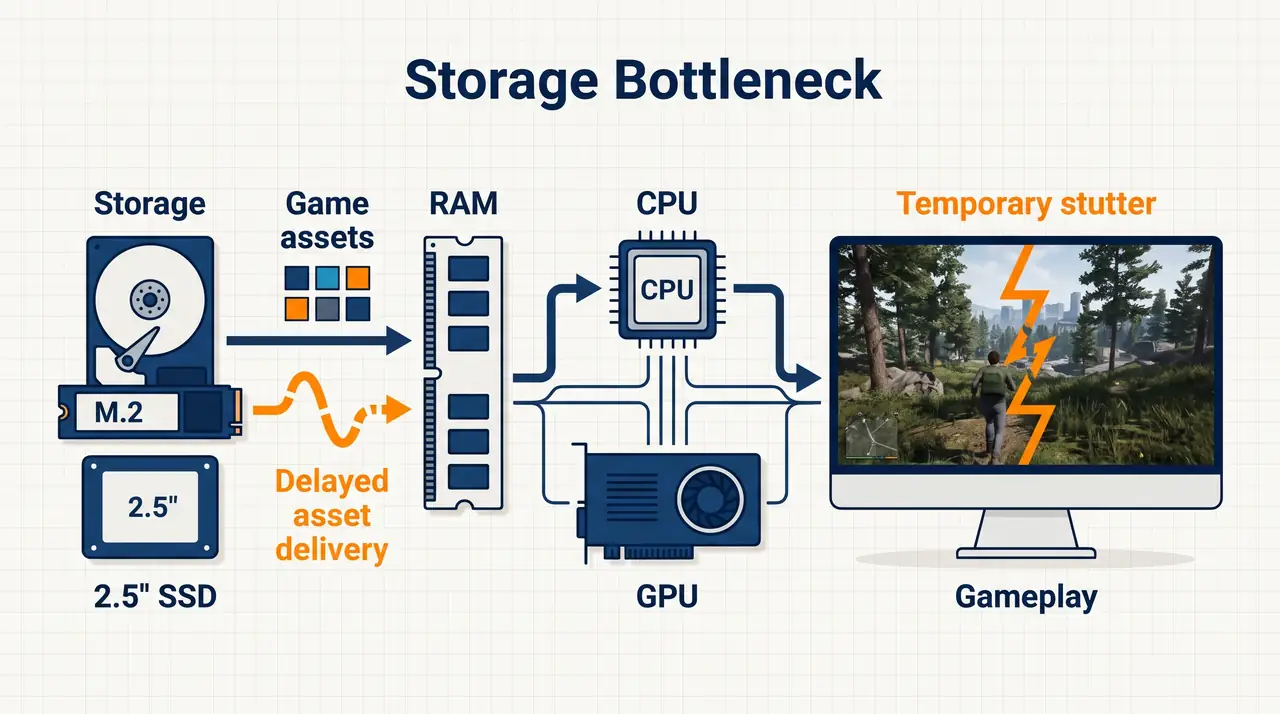
Storage bottlenecks occur when your drive cannot deliver data as quickly as your game demands. This does not lower your maximum FPS. Instead, it leads to longer load times, texture pop-in, and freezes lasting anywhere from half a second to two seconds when you enter new areas. If a drive is at 100% usage, it means it is saturated with requests, not that it has run out of storage space.
Modern games do not pre-load everything. As you play, they stream textures, geometry, and audio from the drive into RAM. If the drive is slow, a frame ends up waiting for data, resulting in a noticeable stutter. When the RAM fills up, Windows moves data to the drive, therefore, a slow drive proves to be more detrimental. In this regard, please refer to the RAM bottleneck guide.
Older APIs exacerbated this by routing thousands of small read requests through the operating system and requiring the CPU to decompress everything before the GPU could process it. Fast drives alone could not solve this; the issue lay within the pipeline, something that DirectStorage addresses (as discussed below).
Your CPU and GPU determine the maximum frame rate, while the storage drive dictates how consistently you reach that level.
An SSD significantly reduces load times and eliminates streaming-related stutters; however, once the game has loaded, the frame rate remains the same. In a published benchmark, Cyberpunk 2077 took 18-49 seconds to load on an HDD, compared to approximately 6 seconds on an SSD.
If the average FPS is fine, but the game stutters whenever you move, the storage drive is the likely culprit. If your average FPS remains low even after everything has loaded, the bottleneck lies elsewhere, please refer to the FPS bottleneck guide in this regard.
Storage-related stutter vs. shader-related stutter: Shader stutter occurs when the CPU compiles GPU programs during an initial encounter. It typically lasts 50-200 ms, appears when new visual effects are triggered, and fades away once the cache is built. Storage-related stutter lasts longer, is linked to movement, and only ceases once the game has finished loading data from the storage drive.
Storage-related pop-in vs. VRAM-related pop-in: If reducing texture quality resolves the issue, the cause is VRAM, not the storage drive. See the VRAM bottleneck guide.
| Factors | HDD | SATA SSD | NVMe SSD |
|---|---|---|---|
| Typical sequential speed | 150-200 MB/s | ~550 MB/s | ~7,000 MB/s (Gen4), up to ~14,000 MB/s (Gen5) |
| Random small reads | Poor | Good | Excellent |
| Best use | Archive, media, rarely played games | Best-value upgrade for most PCs | DirectStorage titles, streaming-heavy engines |
HDD: Suitable for archives and games you play only a couple of times a year. It struggles with the small, random read operations required by game streaming engines, the very cause of “pop-in” and performance dips in open-world games.
SATA SSD: For anyone still playing games off a hard drive, this is the single most impactful upgrade. Game load times typically drop from 20-40 seconds down to 5-15 seconds, and Windows boots up in a fraction of the time.
NVMe: In real-world scenarios, the performance gap between SATA and NVMe is smaller than what the spec sheets suggest, as games rely more on random access speeds than sequential throughput. NVMe truly justifies its cost in games utilizing DirectStorage and engines built around advanced streaming, such as Unreal Engine 5’s Nanite and World Partition systems. Gen4 and Gen5 drives offer extra headroom rather than meeting strict requirements; furthermore, PCIe 5.0 provides no tangible benefit if a game is designed for Gen4 standards.

DirectStorage is a new data path between an SSD and a game, it is not simply a “faster SSD.” It reduces OS overhead during small read operations and, as of version 1.1, allows the GPU, rather than the CPU, to decompress data. Microsoft claims this can significantly lower the load on the CPU.
Requirements (per Microsoft DirectStorage documentation): A DirectX 12-capable GPU with Shader Model 6.0 support, Windows 10 version 1909 or later (Windows 11 is ideal), and an NVMe SSD (recommended to take full advantage of the technology).
What it will not do: It will not increase the FPS of a game, fix “pop-in” issues caused by limited memory, or make PCIe 5.0 a requirement.
Copy the game that is experiencing stuttering onto an SSD, disconnect the HDD to ensure nothing is running from it in the background, and play the game for an hour. If the stuttering stops, it means the issue was caused by the drive.
For a long-term setup, keep the games you are currently playing on the SSD and use the hard drive for data archiving. If the fix means a wider upgrade, see how to pair a CPU and GPU before you buy.
Storage is like a delivery truck, not a speed limit. If lowering graphics settings increases your FPS, it means the bottleneck lies with the CPU or GPU. If temperatures rise during a sustained load, please refer to the Thermal bottleneck guide. For lane limits, see the PCIe bottleneck page. To understand the impact of resolution, check the Resolution Bottleneck guide. For limitations related to the CPU and GPU, please consult their respective dedicated pages. To see how the calculator scores a pairing, see how we calculate the bottleneck percentage.
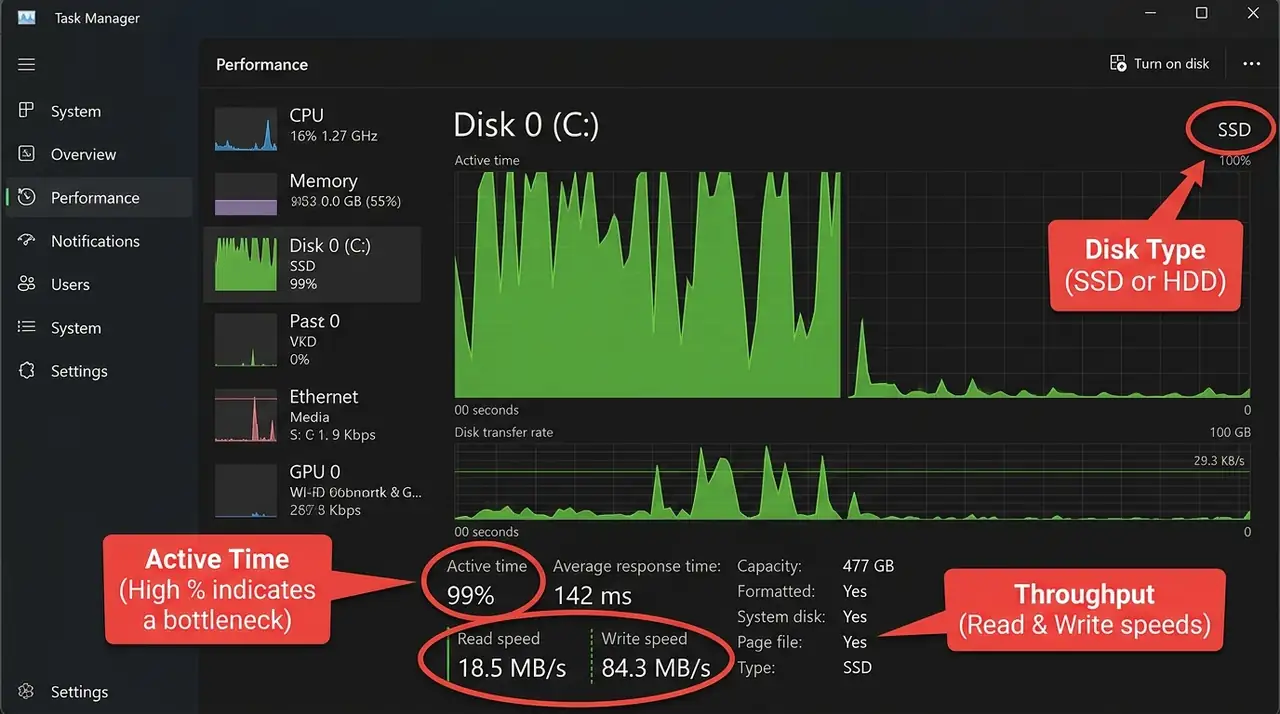
Long load times, textures popping in late, and freezes of half a second to two seconds when you enter a new area or fast-travel are the clearest signs. A drive sitting at 100% usage in Task Manager while a game loads is a strong confirmation. If your average FPS is fine once everything has loaded but you stutter while moving, the drive is the likely culprit. If FPS stays low even after everything has loaded, the bottleneck is elsewhere.
Common causes include a slow HDD, a drive that is nearly full, file fragmentation, and inferior connections like SATA II. In open-world games, this can lead to stuttering as assets are streamed from a slow disk, along with slow loading times. Running background programs on the same drive exacerbates the issue. This manifests as stuttering and long loading times, rather than low FPS.
No, a large drive does not cause lag on its own. Slowness typically arises when a drive is nearly full, reaching 90% to 95% capacity, which reduces the speed of both HDDs and SSDs (especially the drive containing Windows). A full system drive causes games to stutter and lag, making the entire system feel sluggish. Move your games elsewhere, or purchase a larger SSD to resolve the issue.
For most gamers, 2TB is a comfortable amount, it is not considered "too much." With AAA games ranging from 50GB to 100GB each, a drive can hold roughly 15 to 25 titles, a mix of major and smaller games. This capacity can feel limited as game sizes continue to grow; the actual usable space is approximately 1.8TB. While this is sufficient for casual players, those with extensive game libraries often prefer 4TB or more.
Generally, no. An HDD primarily impacts loading times rather than average FPS. However, there is a caveat: a slow or fragmented HDD can cause stuttering and brief drops in FPS, for instance, when an open-world game loads assets during gameplay, or when background tasks compete for access to the same drive. While an SSD doesn't necessarily increase your FPS, it helps eliminate these performance dips and reduces waiting times.
Not anymore. After accounting for Windows, save files, and updates, a 500GB drive can only accommodate about two to four major 'AAA' games; this is why many consider it the absolute 'bare minimum.' This setup might work if you play only one game at a time, uninstalling titles once you’ve finished them or moving them to an external drive. However, for gaming today, most people recommend having 1TB of storage or more.