
A resolution bottleneck occurs when your display resolution (the number of pixels) determines which component limits performance. At lower resolutions, such as 1080p, the GPU generates frames rapidly and then waits for the CPU to become available. Conversely, at higher resolutions, such as 4K, the GPU slows down, leaving the CPU with spare time. The same PC might be ‘CPU-limited’ on one monitor, while being ‘GPU-limited’ on another.
Each frame involves a hand-off between two processors, which operate on different scales.
Increasing the resolution causes the GPU’s per-frame workload to rise sharply, while the CPU’s workload remains virtually unchanged. This is why the “bottleneck” can shift when the resolution changes, even though the hardware itself hasn’t altered. Scaling is not perfectly proportional to the pixel count, since some GPU tasks (such as geometry processing) are independent of resolution, but the general trend remains consistent.
This is why a “bottleneck percentage” is meaningless without specifying the resolution. Always ask: at what resolution, refresh rate, and in which game was that figure measured? To see how the calculator accounts for resolution when determining the percentage, please refer to our guide on how we calculate the bottleneck percentage.
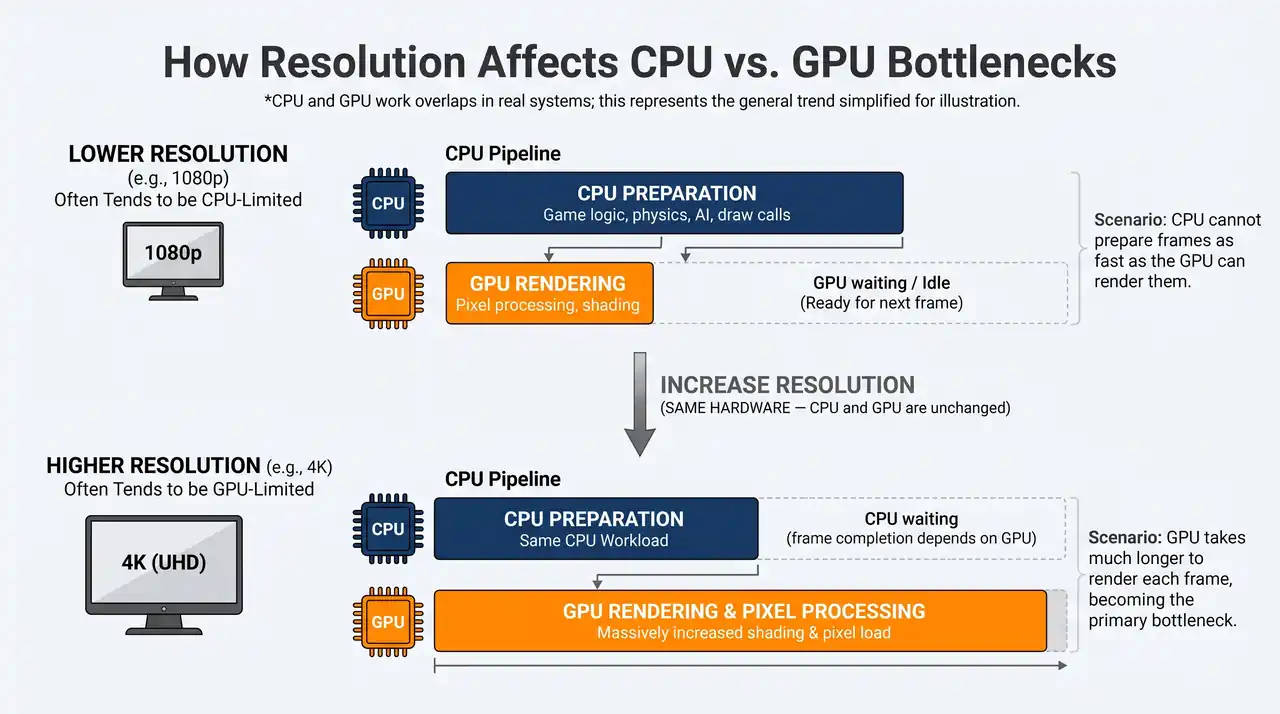
The GPU workload is determined not by screen size or aspect ratio, but by the number of pixels.
| Resolution | Pixels per frame | Versus 1080p | Share of 4K |
|---|---|---|---|
| 1920x1080 (1080p) | 2,073,600 | 1.0x | 25% |
| 2560x1440 (1440p) | 3,686,400 | 1.78x | 44% |
| 3840x2160 (4K) | 8,294,400 | 4.0x | 100% |
Moving from 1080p to 1440p results in an increase of approximately 78% in the number of pixels, while transitioning from 1080p to 4K quadruples that number.
Let’s examine the impact of this on actual hardware. For example, in a system equipped with a Core i5-13600K processor and an RTX 4070 Ti graphics card, one might observe a ‘CPU bottleneck’ of approximately 24-27% at 1080p resolution, 11-13% at 1440p, and less than 5% at 4K. During this process, GPU utilization could increase from 74% to 89%, and subsequently reach 97%. Throughout this entire scenario, no hardware changes or upgrades were made, only the ‘pixel load’ was altered. Please consider these figures merely as an example of a pattern or trend, rather than as definitive results for your own system.

| Resolution | Typical limiter | What you will see | Best lever |
|---|---|---|---|
| 1080p | CPU (with a fast GPU) | GPU usage below ~90%, one or more CPU cores near 100% | Faster CPU or RAM, higher render resolution |
| 1440p | Balanced | GPU usage 90 to 99%, CPU with headroom | Usually nothing to fix |
| 4K | GPU | GPU pinned near 100%, CPU mostly idle | Upscaling, lower GPU-heavy settings |
A modern GPU renders two million pixels so rapidly that the preparatory work performed by the CPU becomes the primary factor determining the overall speed. The core logic of most games still relies heavily on one or two ‘threads’, consequently, single-core speed determines the upper limit of performance. If the drop in performance is due to a slow CPU rather than the resolution, you should consult a guide on CPU bottleneck.
For instance, in a game like Starfield, if a system equipped with a Ryzen 7 7700X processor and an RTX 5070 Ti graphics card is running at 4K resolution, it will likely utilize 99% of the GPU’s capacity and 45% to 60% of the CPU’s capacity. At 1080p resolution, GPU usage may drop to 65%-70%, while the most active CPU cores could reach 85%-95% utilization. These figures are merely illustrative of the nature of this shift, they do not represent definitive, measured results for your specific system.
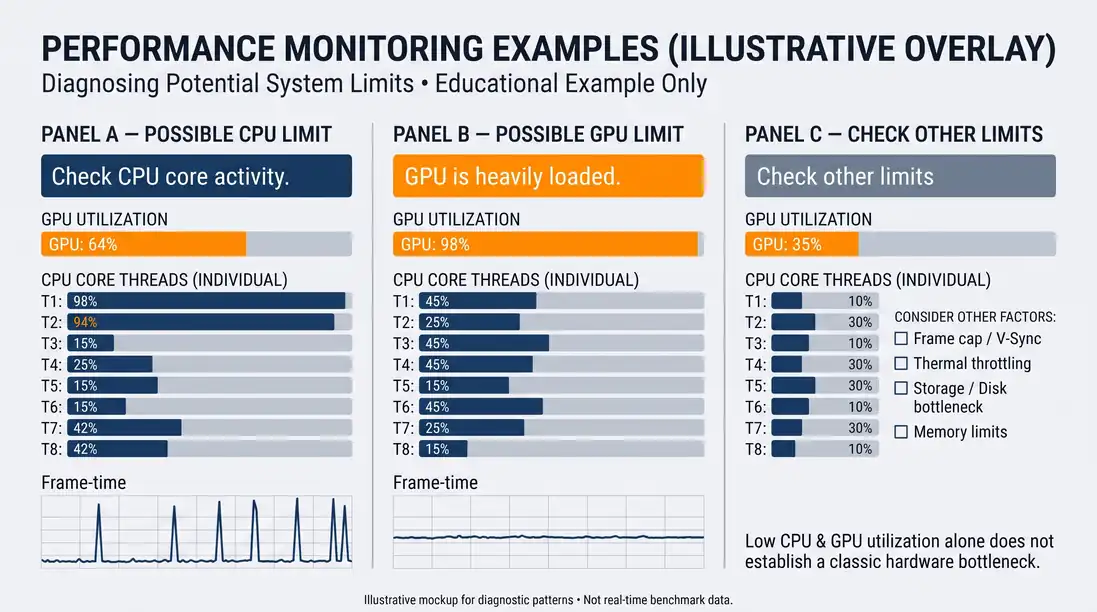
Before spending any money, check these metrics using an overlay. If the primary issue you are facing is low frame rates, the FPS bottleneck guide explains how to understand them.
Sometimes, this leads to improved smoothness. When CPU performance hits a ceiling, the GPU may end up sitting idle, which can result in uneven frame delivery. Increasing the resolution forces the GPU to perform more work per frame.
For example, in a game like Baldur’s Gate 3, a system equipped with a Ryzen 5 5600 and an RTX 4070 Ti can reach up to 95 fps at 1080p resolution, with GPU usage at 70%. At 1440p resolution, the same system can reach up to 92 fps, with GPU usage at 95%. While there is no significant difference in the average frame rate, the system shifts from an unbalanced state to a balanced one, resulting in better frame pacing. For this very reason, some competitive gamers also choose to increase the resolution; the additional load on the GPU brings the frame rate down to a level that the CPU can consistently sustain. Consider these figures merely as an example of a pattern, rather than as definitive, measured results for your own system.
At 1440p, the GPU is sufficiently loaded to prevent the CPU from becoming a constant bottleneck, while the frame rate remains high enough for high-refresh-rate monitors. This is also the resolution where calculator-style bottleneck estimates tend to be most reliable, though they remain mere estimates and should always be verified through live monitoring.
At 8.3 million pixels per frame, GPU time becomes the dominant factor, and the performance gap between CPUs narrows. A mid-range CPU that might struggle at 1080p can often keep pace at 4K. In this scenario, being “GPU-bound” is an expected and healthy state. If the graphics card itself is the limiting factor, rather than the resolution, refer to the guide on GPU bottleneck. At 4K, VRAM demand also increases, therefore, if you experience texture stuttering or delayed texture streaming, consult the guide on VRAM bottleneck.
However, 4K is not without its limits. In demanding games, driving a high-refresh-rate 4K display can push even a flagship GPU to its breaking point. Ray tracing adds to the computational cost, as the number of rays scales with the pixel count. For instance, the performance penalty for ray tracing at 1080p might be around 30%, compared to 50-60% at 4K. Solutions include using upscaling, lowering ray tracing settings, or reducing the output resolution. View these figures as an example of a pattern, rather than as specific, measured results for your own system.
It is easy to form a misconception about ultrawide monitors. The workload on a GPU is determined by the number of pixels, not by physical width or a term like “ultrawide.”
| Resolution | Aspect ratio | Pixels | Share of 4K |
|---|---|---|---|
| 2560x1080 | 21:9 | 2.76 million | 33% |
| 3840x1080 | 32:9 | 4.15 million | 50% |
| 3440x1440 | 21:9 | 4.95 million | 60% |
| 3840x1600 | 24:10 | 6.14 million | 74% |
| 5120x1440 | 32:9 | 7.37 million | 89% |
What does this mean in practical terms:
In terms of GPU load, 3440×1440 is much closer to 1440p than to 4K; therefore, a mid-range graphics card, using sensible settings or upscaling, can handle it.
Always verify the exact resolution before choosing a graphics card for any ultrawide monitor.
Display resolution is the pixel grid of your monitor. Render resolution is the grid that the game actually draws before it is scaled to fit the display. Many games offer a resolution scale slider (for example, 85% or 70%) that functions without the use of AI.
Think of this as a “workload dial.” Rendering at less than 100% lightens the load on the GPU and may reveal a previously hidden CPU bottleneck. Rendering at more than 100% (supersampling) increases the load on the GPU and can mask such a bottleneck.
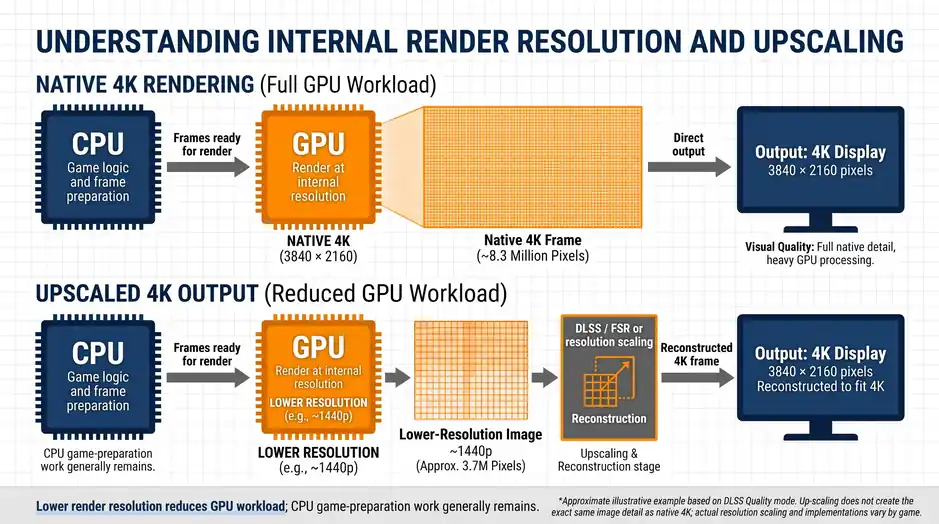
Upscalers render internally at a lower resolution and then reconstruct the image to match your display resolution. At 4K, DLSS in ‘Quality’ mode renders at approximately 1440p (roughly 3.7 million pixels instead of 8.3 million), which is why it provides such a significant benefit.
As a typical range, not a measured result, DLSS in ‘Quality’ or ‘Balanced’ mode typically adds roughly 40% to 70% FPS at 1440p and 4K resolutions, while FSR in ‘Quality’ mode at 1440p typically adds roughly 30% to 40%. The actual gain depends on the game, the settings, and the hardware, so treat these as rough typical ranges rather than results you will see on your own system. FSR is compatible with a wide range of hardware, including older graphics cards. At 1080p, upscaling begins with very few source pixels, resulting in a visual quality that is noticeably worse than native resolution; therefore, it is best to stick to ‘Quality’ mode or native resolution.
Upscaling only reduces the workload on the GPU. The CPU continues to process the same game logic, physics, and frame preparation tasks for every frame; therefore, when your system is CPU-limited (i.e., constrained by the CPU’s capacity), there is often no change in the frame rate. In fact, this bottleneck may become even more pronounced, as the GPU is forced to wait longer. If your GPU usage is below 90% while one of the CPU cores is fully utilized (pinned), then using upscaling is not appropriate.
Frame generation inserts AI-interpolated frames between actual frames, increasing the displayed FPS without reducing the cost of rendering each actual frame. Aim for a base frame rate of approximately 60 FPS before enabling it. Below about 40 FPS, artifacts and latency become noticeable. It does not fix CPU-bound stuttering, shader compilation hitches, or stalls caused by asset streaming.
This test takes approximately ten minutes per game. This is the complete version of the test, so please follow each step in order.
| Result | Meaning |
|---|---|
| FPS falls substantially as resolution rises, and GPU stays near 100% | GPU-limited (normal) |
| FPS stays nearly flat while GPU usage rises | CPU-limited at the lower resolution |
| Both GPU and CPU look low | Likely a frame cap, V-Sync, thermal throttling or slow storage, not a classic bottleneck |
Use a single rule when reading the overlays: if one or more CPU cores are near 100% while the GPU usage is below approximately 90%, it indicates a CPU bottleneck. If the GPU usage is at 95% to 100%, it indicates a GPU bottleneck. Also, keep an eye on frame times, as CPU bottlenecks often manifest as spikes before they affect the average.
Start with your target resolution and refresh rate, then decide where to spend.
| Target | Where the money matters most |
|---|---|
| 1080p at 240Hz (esports) | CPU and fast RAM; a mid-range GPU is usually enough |
| 1440p at 144Hz | Balanced CPU and GPU |
| 4K at 60 to 120Hz | GPU and VRAM; a mid-range CPU is usually fine |
Resolution determines the cost of each frame, while the refresh rate dictates how many frames the CPU must prepare. The ‘bottleneck’ percentage is an estimate of the performance gap between various components, it is not a guarantee that your FPS will decrease by exactly that amount. Therefore, a 10% figure does not mean that you will lose 6 FPS when running at 60 FPS, or 24 FPS when running at 240 FPS. Keep both targets in mind when you read a percentage. Sometimes, a 1440p high-refresh-rate monitor is a more cost-effective solution than upgrading your CPU, motherboard, and RAM, as it shifts the workload onto the GPU. Once you have determined your desired resolution, be sure to research how to pair a CPU and GPU before making a purchase.
Yes, but indirectly. Regardless of the resolution, the CPU performs roughly the same amount of work for each frame, handling tasks like game logic, physics, AI, and draw calls. What changes is the FPS (frames per second). At lower resolutions, the GPU completes frames more quickly, which forces the CPU to prepare significantly more frames per second. At higher resolutions, the GPU operates more slowly, giving the CPU more time to process each frame and resulting in a lighter load on the CPU.
At lower resolutions, the GPU has fewer pixels to render; it completes each frame very quickly and then sits idle, waiting for the next one. In this scenario, the CPU becomes a limiting factor because it can only prepare a finite number of frames per second. This is why a powerful GPU might only be utilized at 60–70% capacity at 1080p resolution, whereas at 4K resolution, that same setup might reach nearly 100% utilization, at which point the GPU itself becomes the primary bottleneck.
No, 1080p resolution is not bad for gaming. This remains an excellent choice for competitive games, smaller screens (up to 27 inches), and budget or mid-range PCs, as it delivers higher FPS and smoother motion. While it may appear slightly less sharp (softer) on larger screens compared to 1440p or 4K, it is highly practical and extremely popular due to its speed, affordability, and support for high refresh rates.
Yes, generally it does, but only if the GPU is the primary limiting factor. A lower resolution means fewer pixels to render, allowing the GPU to generate more frames. If a game is already "CPU-limited," lowering the resolution will likely result in little to no change in FPS, because the CPU still has to process the same logic and issue the same draw calls for every frame. If the FPS does not increase after lowering the resolution, it is a clear sign of a "CPU bottleneck."
It depends on what you value most. For fast-paced, competitive games, a smooth 1080p experience at 60fps is generally superior to a choppy 4K experience at 30fps, as it offers lower input lag and more consistent motion. However, if 4K can also run at 60fps, it clearly wins in terms of sharpness and detail. Therefore, 1080p at 60fps is better than 4K with a low frame rate, though it is not better than a smooth 4K experience.
Yes, the RTX 5060 is specifically designed for 1080p gaming. It can run most modern 'AAA' titles at high settings with frame rates exceeding 60fps, and it delivers very high frame rates in esports titles, especially when DLSS is enabled. Its 8GB of VRAM is its primary limitation, so you might need to lower 'ultra texture' settings in some highly demanding games. While it can handle 1440p at lower settings, 1080p is its sweet spot.
Yes, 720p is a fine choice if your hardware or display has limited capabilities. It performs well on older PCs, laptops, and handheld devices, allowing you to maintain higher settings while achieving better FPS (smoothness). It looks acceptable on smaller screens; however, on a larger 1080p monitor, where the image is upscaled, it tends to appear soft and blurry. If you are able to run games smoothly at 1080p, then 720p is not the best choice, but it serves as a useful fallback option to ensure playable performance.