
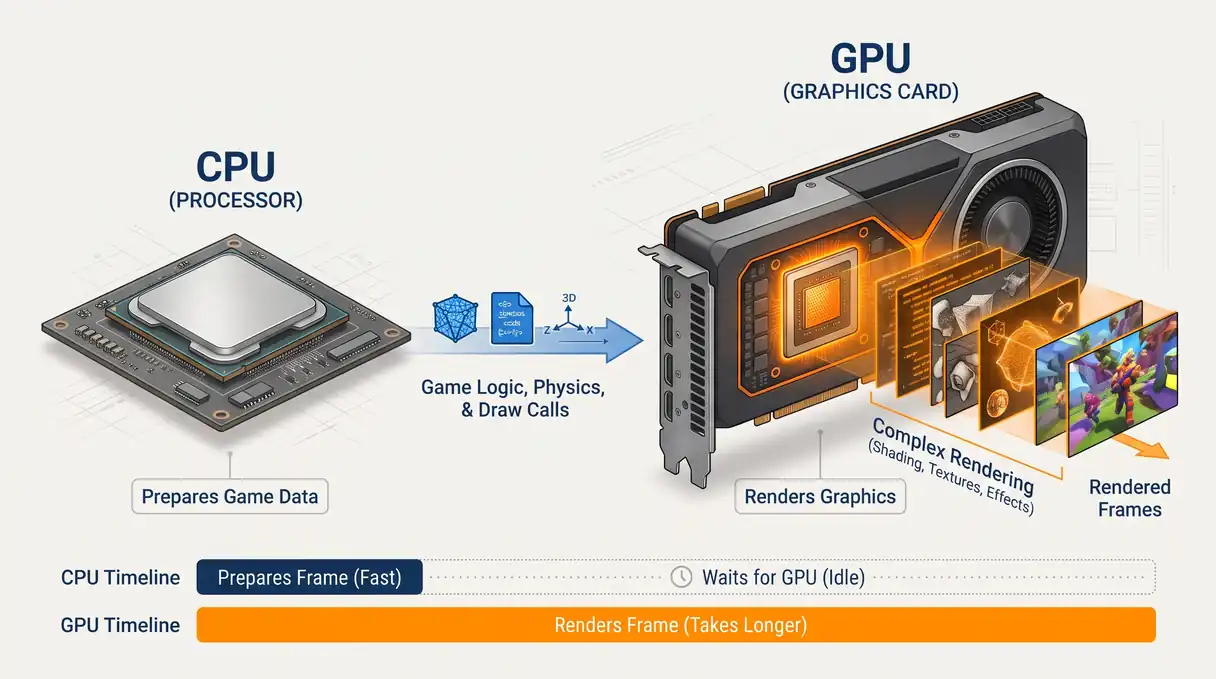
A GPU bottleneck means that your graphics card is the slowest component in the rendering pipeline, forcing the CPU to wait for it. In gaming, this is a common and generally acceptable scenario. It only becomes an issue if your FPS falls below your desired level. You can verify this within about 10 minutes using a free overlay and a resolution test. In most cases, the situation can be improved, without spending any money, simply by adjusting settings or using upscaling.
Each frame begins with the CPU preparing instructions (such as draw calls, game logic, and physics). The GPU then handles the heavy lifting, which includes shading, texturing, ray tracing, and anti-aliasing. If the GPU requires more time per frame than the CPU, the graphics card becomes the limiting factor for your frame rate. This is known as a GPU bottleneck, and such a situation is also described as being GPU-bound.
Typically, this manifests as GPU usage at 95–100%, while the CPU still has some headroom. Calling it a “bottleneck” might sound negative, but it simply means that your most expensive component is being fully utilized. The real question is whether your FPS meets your target, for instance, matching your monitor’s refresh rate.
When comparing results, use the same game, scene, and settings every time. No single metric serves as definitive proof of a bottleneck on its own; therefore, treat each reading merely as an indicator.
Install MSI Afterburner along with RivaTuner Statistics Server (both are free). Enable the ‘On-Screen Display’ (OSD) to show FPS, GPU usage, GPU memory (VRAM), GPU temperature, and per-thread CPU usage on the screen. Per-thread data is important because a game might fully utilize (max out) a single CPU core, even while the overall CPU usage graph appears low. Windows Task Manager also displays GPU usage and CPU graphs for each logical processor, but it lacks the feature to show this information on-screen while playing a game (an in-game overlay). For a second check on the card itself, GPU-Z shows the model, VRAM size, clocks, temperature, and load.
Play a demanding scene lasting 5 to 10 minutes, such as a combat sequence or a crowded area. Menus barely load any components, so they won’t provide any useful information. Note your typical FPS and observe whether the component usage, temperatures, and clock speeds remain consistent.

| What the overlay shows | What it means | What to do |
|---|---|---|
| GPU at 95-100%, no CPU core near max | Likely GPU bottleneck (normal) | Act only if FPS is below target; confirm with the resolution test |
| GPU well below full load, one CPU core near 100% | Possible CPU or game-engine limit | Check CPU activity, frame caps, and background processes; a faster GPU may change little |
| VRAM near capacity with stutter or texture pop-in | Possible VRAM limit | Lower texture quality as a test |
| GPU temperature high, clocks dropping | Thermal throttling | Fix cooling before judging the card |
These examples are merely indicative, not definitive rules. Frame caps, the combined limitations of the CPU and GPU, and the behavior of the game engine, all these factors can alter the way the data appears. For the heat side of this pattern, see the thermal bottleneck guide.
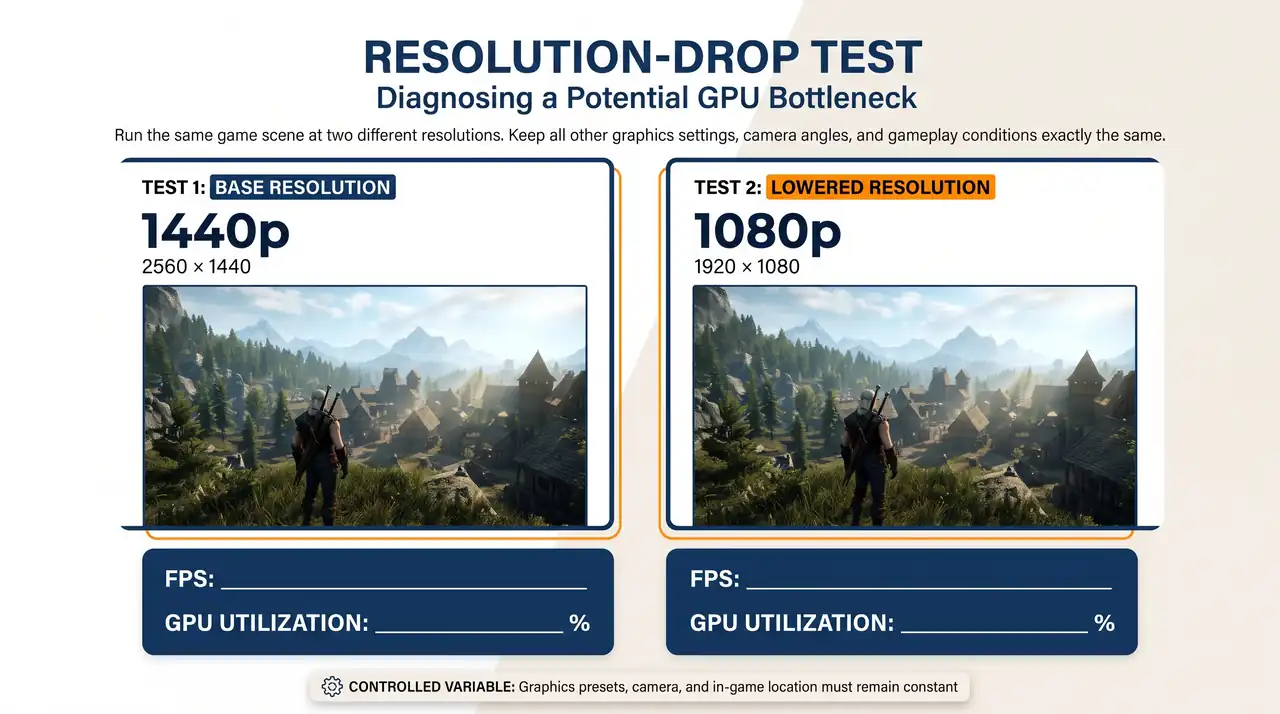
First, disable frame caps and V-Sync, then lower the resolution by one or two steps and run the same scene using these settings. If the FPS increases, the bottleneck is on the GPU side; if there is no change in the fps, the bottleneck is on the CPU side. For a complete step-by-step procedure, see the Resolution Bottleneck: Is Your Monitor Too Much for Your PC?.
Resolution is generally the most important factor. The GPU has to shade every pixel, and 4K contains approximately four times as many pixels as 1080p. The workload for the CPU remains roughly the same per frame. This is why a system that feels balanced at 1080p may become GPU-limited at 1440p or 4K. The final outcome depends on the game, the settings, and the hardware. For the full treatment of resolution as a limit, see the resolution bottleneck guide.
Ray tracing is the most demanding (covered in its own section below), followed by high shadow quality, ambient occlusion, and ultra textures. Each of these adds to the per-pixel workload or memory traffic. If your FPS drops significantly after changing a setting, that setting is the cause, there is nothing wrong with your hardware. Switching from ‘Ultra’ to ‘High’ often yields a substantial gain in FPS, with minimal loss in visual quality.
When a game requires more video memory than your card possesses, assets spill over into the slower system RAM. The result is stuttering, texture pop-in, and sudden frame drops, even when the GPU core is not fully loaded. Requirements vary based on resolution, texture settings, and the specific game; some modern titles can consume more than 8GB of VRAM when running at higher settings. Cards with less VRAM reach their limits sooner. Lowering texture quality is the quickest way to test this. For the full VRAM walkthrough, see the VRAM bottleneck guide.
An older graphics card paired with a new CPU will almost always be GPU-limited, regardless of the settings, simply due to the inherent performance gap between the two components. Thermal issues can lead to a similar outcome: if a GPU reaches its thermal limit, its clock speeds will drop, a result also triggered by power limits in laptops. Furthermore, outdated drivers can negatively impact performance in certain games. Both of these issues can be addressed; see the appropriate steps below.
| Resolution | Typical limit | What to know |
|---|---|---|
| 720p | Almost always the CPU | Any modern GPU handles it; CPU speed sets your FPS ceiling |
| 1080p | Often the CPU, especially in high-FPS esports games | If you play mostly here, CPU strength matters more than GPU power |
| 1440p | GPU or CPU, depending on the game | A common balanced setup; graphics settings can shift the limit |
| 4K and ultrawide | Almost always the GPU | Prioritize GPU power and VRAM when buying |
| 8K | Always the GPU | Only top-end GPUs stay playable; upscaling is a must |
These are general trends. Your results will depend on the game, settings, and specific hardware, so please verify using the overlay test provided above.
Upscaling (DLSS, FSR, XeSS) involves rendering at a lower internal resolution and then reconstructing the image, which significantly reduces the workload on the GPU. The benefits gained from upscaling can vary depending on the game and the specific mode used. Since the CPU still generates the same ‘draw calls,’ heavy reliance on upscaling can shift the bottleneck to the CPU. If the FPS stops increasing despite further upscaling, check your overlay to determine where the bottleneck has shifted.
Frame generation inserts AI-generated frames between rendered frames, making motion appear smoother. It does not replace a decent base frame rate, and it introduces some latency. CPU overhead, latency, and quality vary depending on the game, the GPU, and the specific implementation.
Ray tracing and path tracing involve a significant amount of work per pixel; therefore, they place the load on the GPU, regardless of the CPU’s power. If your FPS drops when you enable these features, it means you have added to the GPU workload, it is not a CPU issue. Lower the ray tracing preset or combine it with upscaling.
In a GPU bottleneck, the graphics card operates at maximum capacity while the CPU waits. In a CPU bottleneck, a processor core operates at maximum capacity while the GPU waits. Resolution testing helps distinguish between the two: FPS typically increases when you lower the resolution in a GPU-bottlenecked scenario, whereas it changes very little in a CPU-bottlenecked scenario. Frame caps and engine limitations can complicate the results. For causes and fixes related to the processor, please refer to our guide on CPU bottleneck.
| Indicator | Possible GPU bottleneck | Possible CPU bottleneck |
|---|---|---|
| GPU utilization | Often consistently high | May stay below full load |
| CPU activity | May have headroom | A busy thread or CPU-side limit may be present |
| Lowering resolution | Often improves FPS | May change little |
| Best next step | Test graphics settings and GPU workload | Investigate CPU-side work, engine limits, and frame caps |
None of these patterns is universal, and under different circumstances, even within the course of a single game, both components can limit performance.
Work from free to paid:
Make only one change at a time and compare the results within the same scenario, so that you can determine which step actually helped.
If, even after applying free fixes, your FPS at your desired settings remains significantly lower than your monitor’s refresh rate, then an upgrade is advisable. VRAM consistently operating near its capacity, or an intention to switch to a higher-resolution monitor, are also valid reasons to upgrade.
Before selecting an alternative, check:
Before you buy, read how to pair a CPU and GPU and the best gaming GPU for CPU hub, so the new card matches the CPU you already own.
Bottleneck calculators provide estimates for component pairings, but they cannot account for your specific games, settings, drivers, cooling, or RAM speed. Use them to shortlist components, then verify the results through overlay testing on your own system. Do not upgrade simply because a calculator labels a pairing as unbalanced, real-world gameplay results are far more meaningful.
We use the same bands as the CPU bottleneck guide: under 10% Balanced, 10 to 19% Minor, 20% and above Severe. If the result falls between 10% and 35% due to being ‘GPU-limited’, it is displayed as “GPU-bound (normal)” rather than as a warning, whereas a figure of 35% or higher is still considered ‘Severe’. To learn how the score is derived, please see our article: How we calculate the bottleneck percentage.
If you want to test your own parts, check your own CPU and GPU pairing.
Under a gaming load, temperatures around 70–80°C are normal, while 80–90°C is hot enough to warrant improving your cooling setup. The danger zone begins near 90–95°C; prolonged exposure at these levels can shorten the card's lifespan. An idle temperature near 70°C suggests an issue with airflow or the cooling fans.
Yes. In gaming, 90–100% GPU usage is normal. It means the card is being fully used and is not being held back by the CPU. The numbers to watch are temperature and frame rate: keep the card below 80°C, and if you want more FPS, lower the graphics settings or upgrade the GPU. Capping the FPS to your monitor's refresh rate can also reduce unnecessary load and heat. Only investigate if usage stays high while the desktop is idle, which can point to background software or mining malware, or if temperatures climb excessively. Lower usage is also normal when the frame rate is capped.
No. GPUs are designed to operate under full load; a bottleneck simply means the card is working at its maximum capacity. The only real risk is heat, so monitor your temperatures during long gaming sessions and try to keep them below 80°C. Ensure that your fans and airflow system are functioning correctly.
Generally, this is not necessary. While fans are rated for full-speed operation, running them at 100% creates a lot of noise, and operating them at maximum speed for months can cause the bearings to wear out prematurely. It is better to set up a 'custom curve' that limits the fan speed to around 65–70% during gaming. However, if you are not bothered by the noise or the temperatures, there is no harm in running them at higher speeds.